(Mobile) How to upload clinical photos
1.
From the eDoctor mobile app, select Photo Requests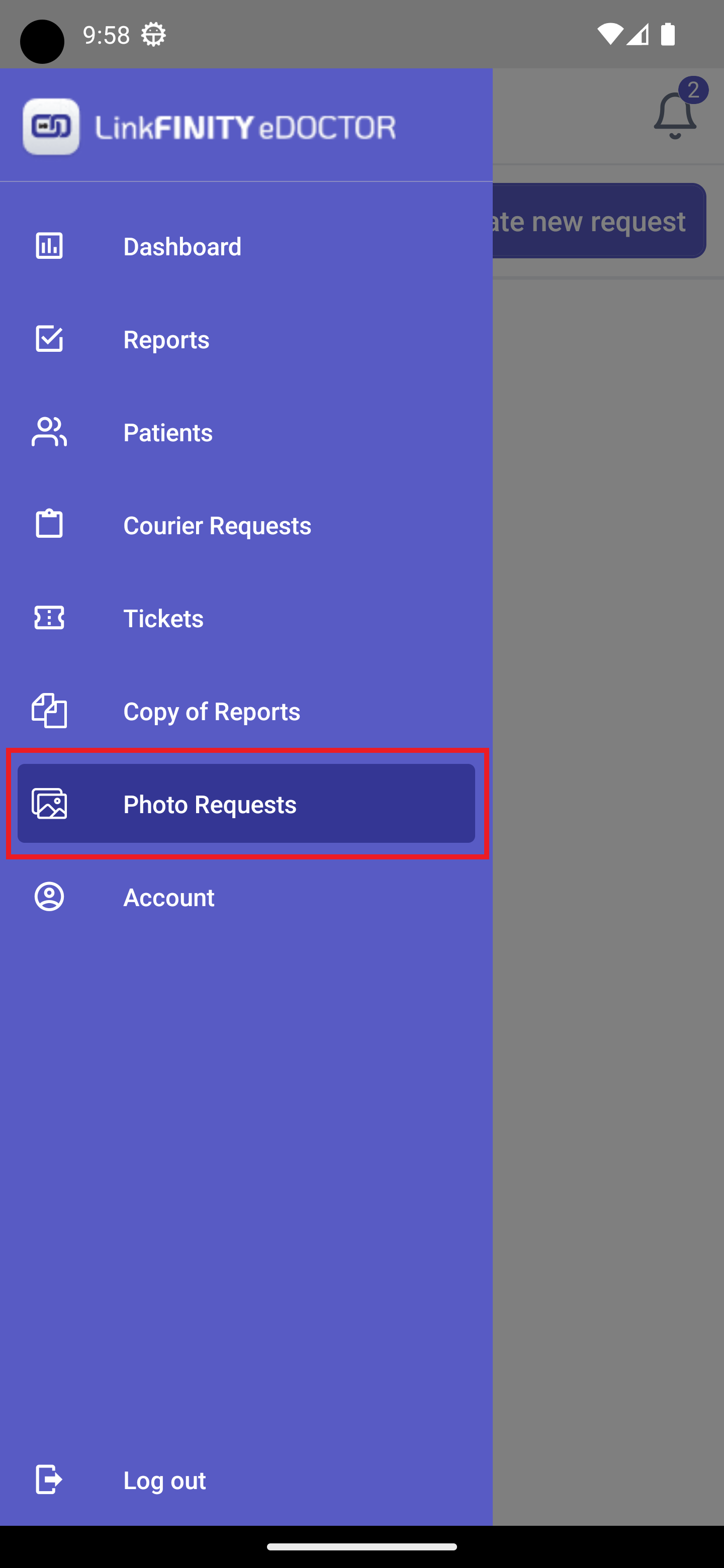

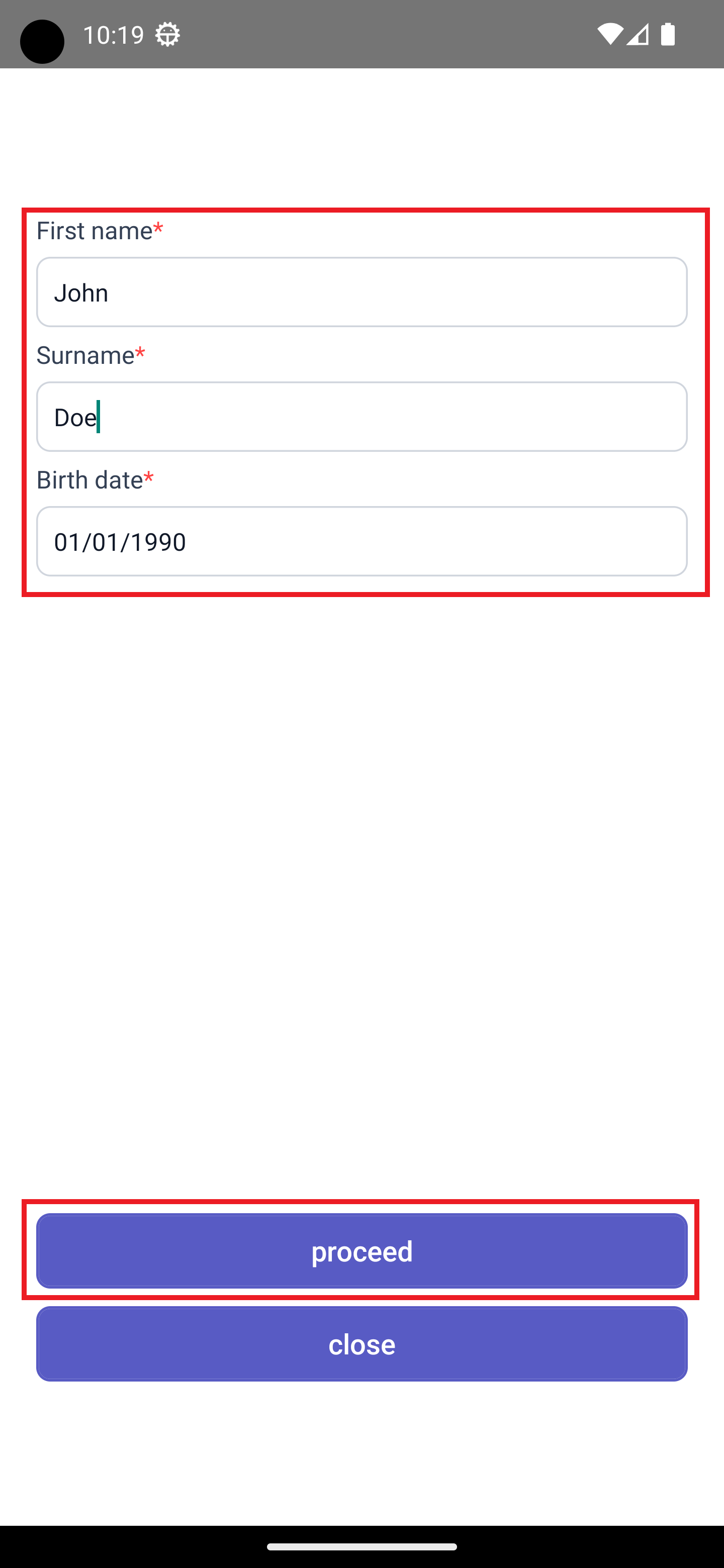
3. You will see this new screen. Provide the name and date of birth of the patient and click proceed
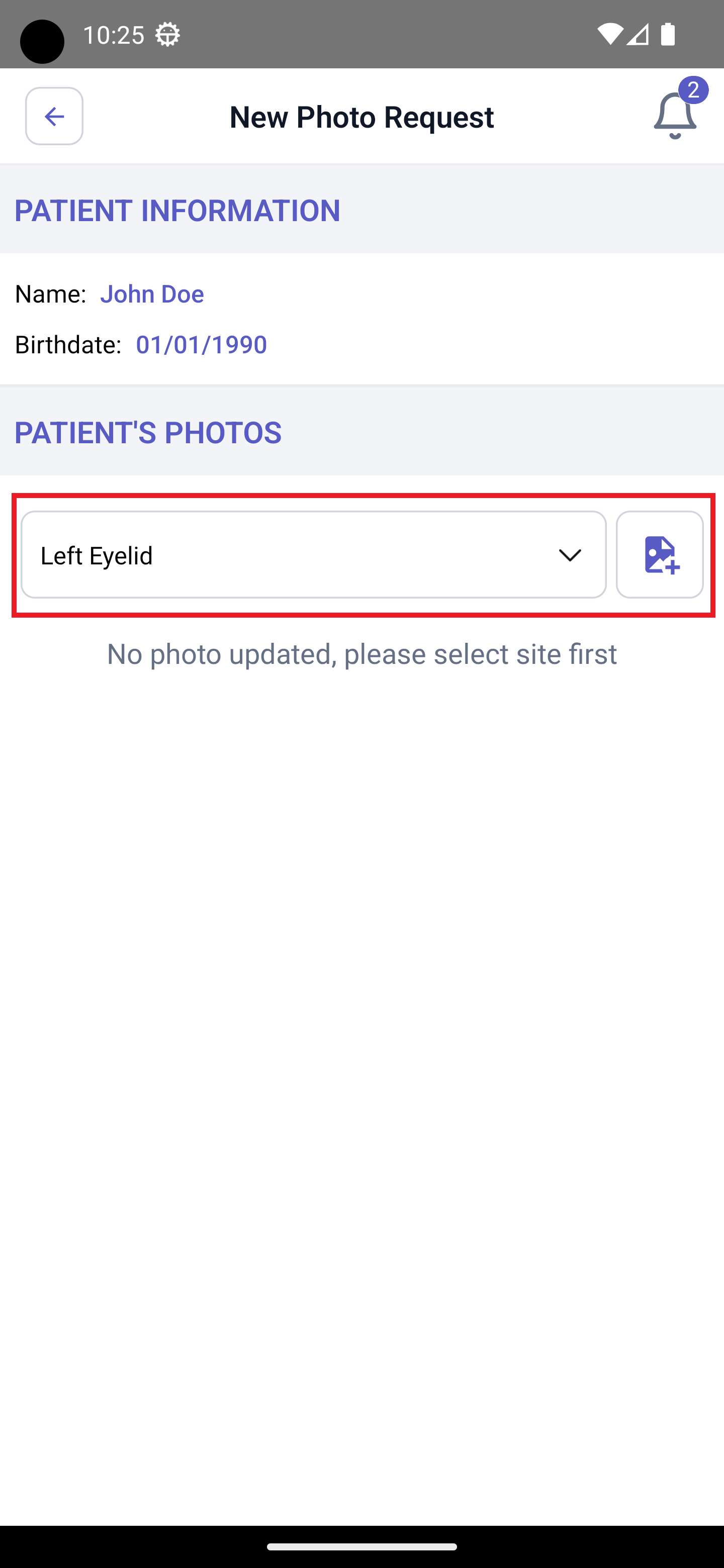
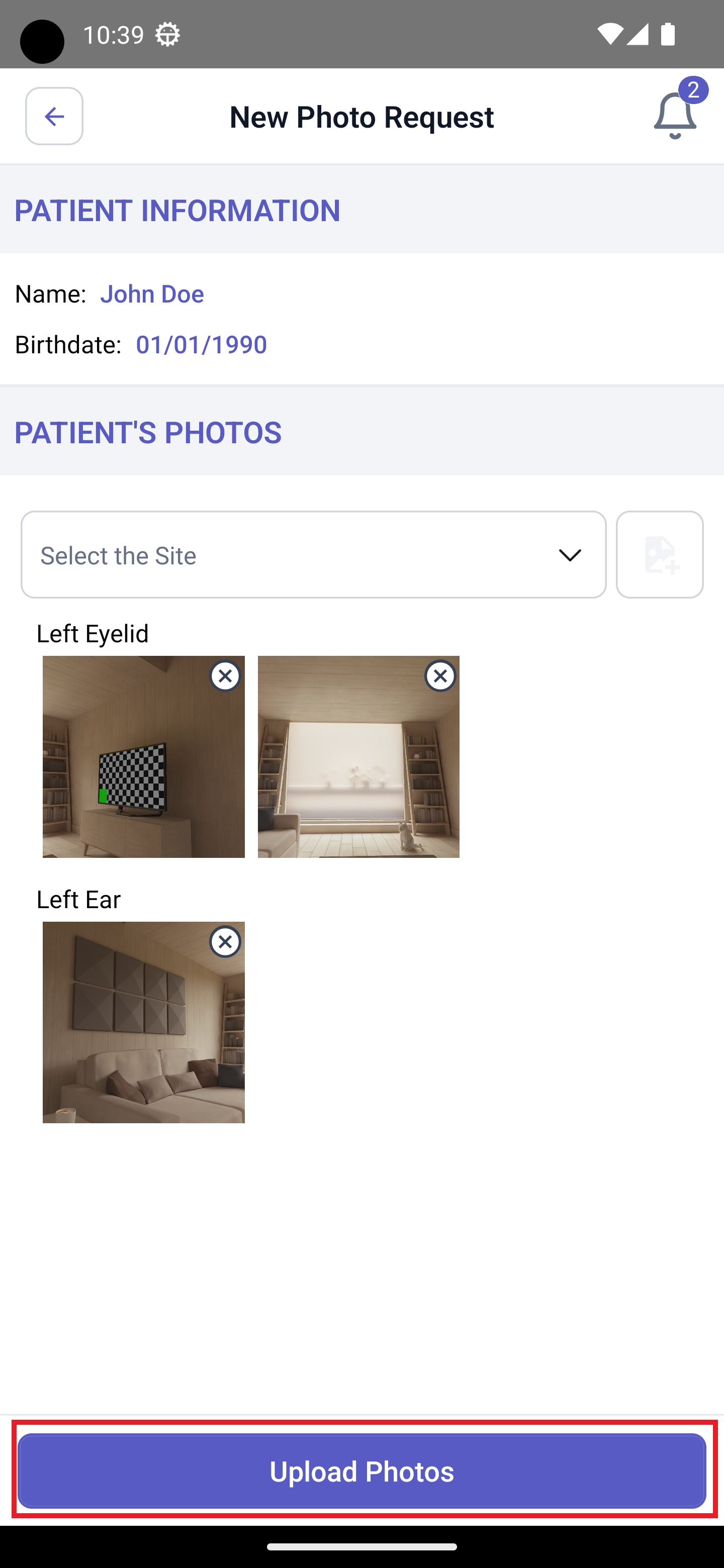
4. In the new screen, select a site from the dropdown list and then click the add photo button on the right. You will be presented with a dialogue box to either take new photos and choose ones from your gallery. You can add one or more photos for each site.
5. Once all photos have been added, select Upload Photos button at the bottom of the screen.
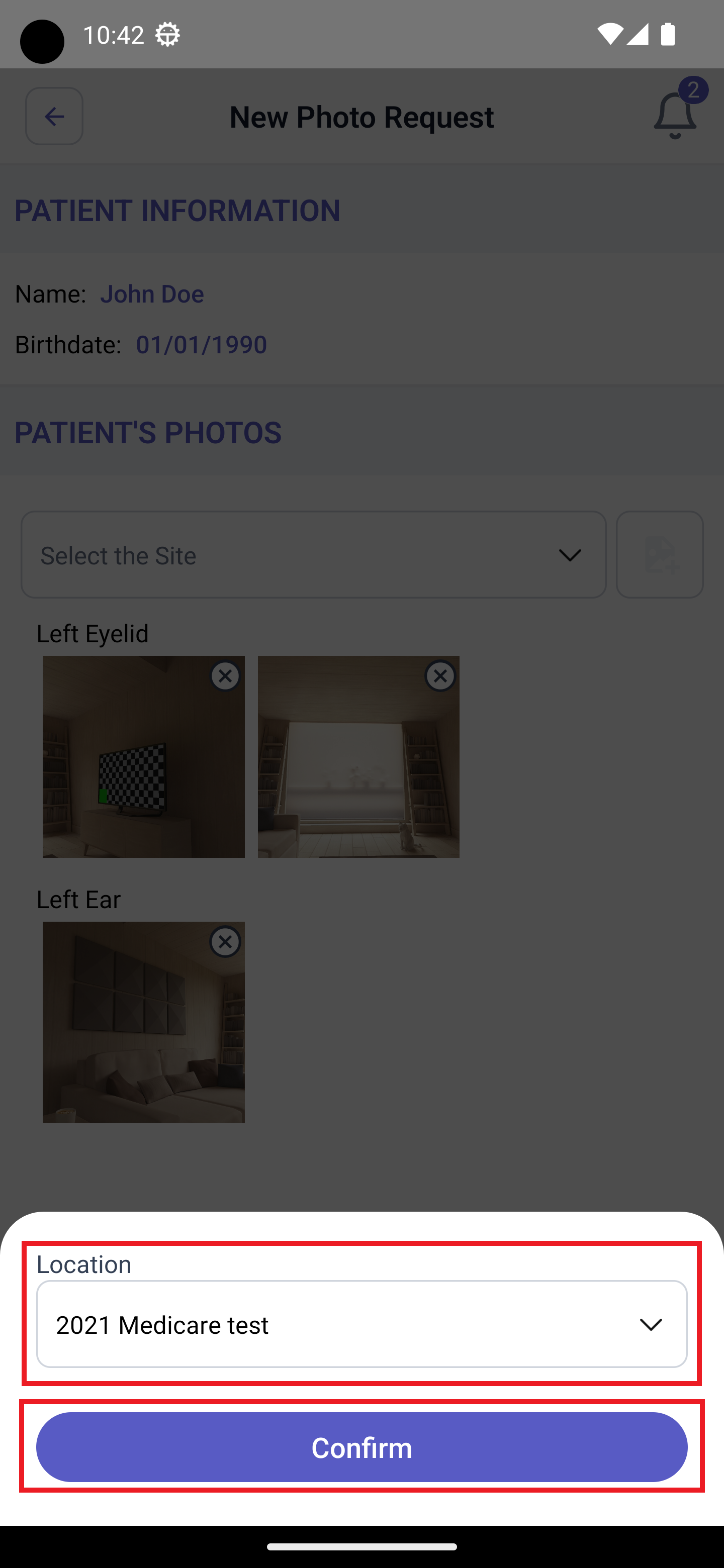
6. If you have multiple locations, you need to select one from the dropdown list and then click Confirm to submit the photos