How to make store order
In this page, you will learn how to:
Make a store order
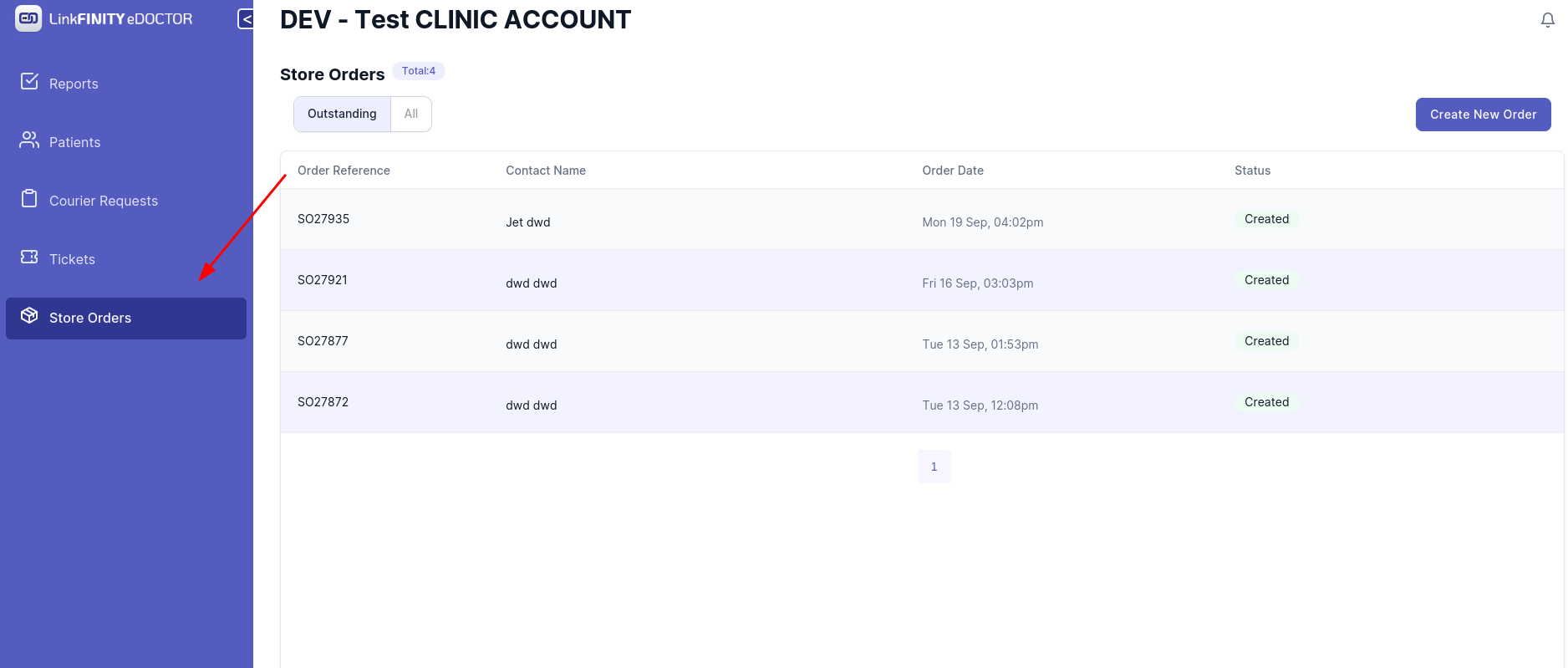
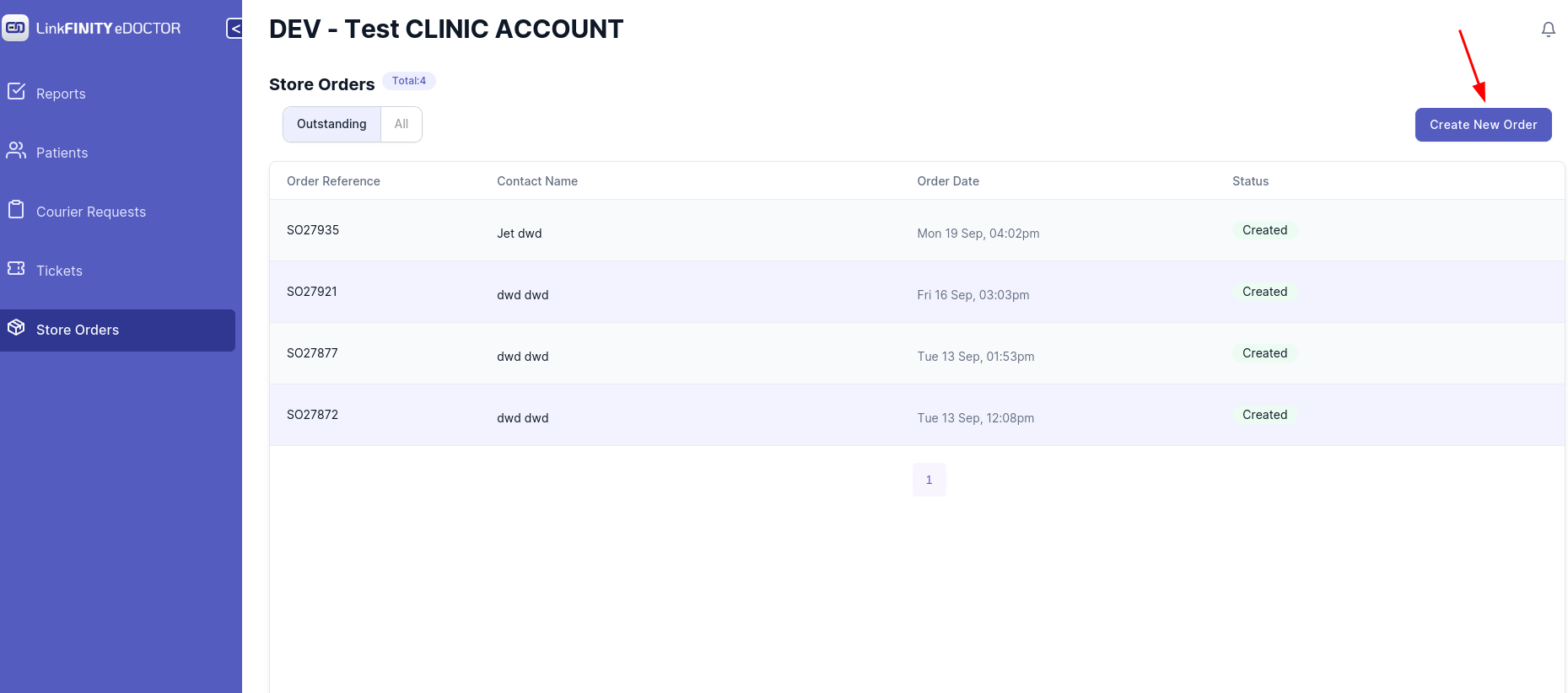
2. Click on `Create New Order` Button
3. This Page should be showing
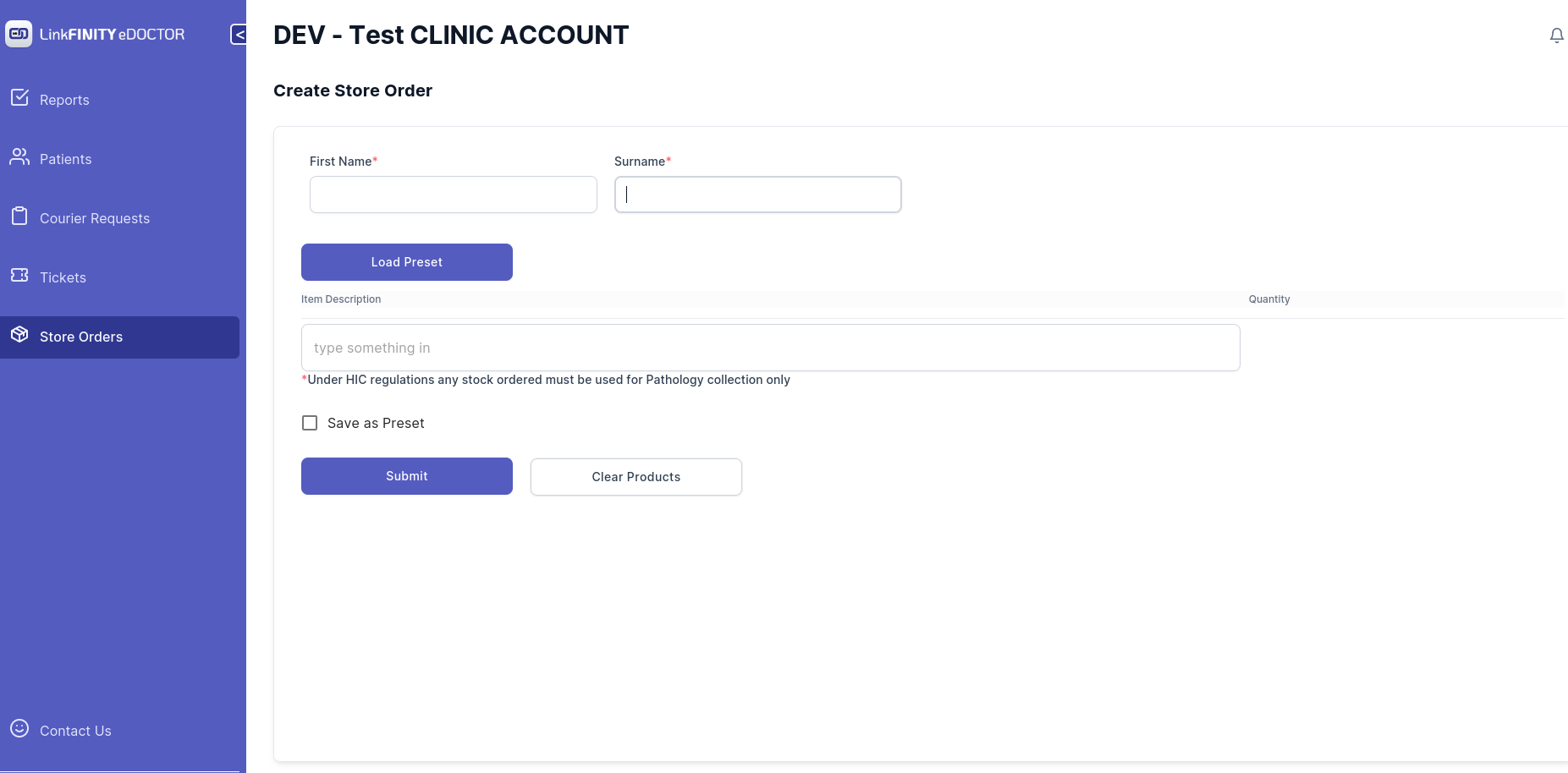
4. Type in your First Name and Surname in corresponding text box
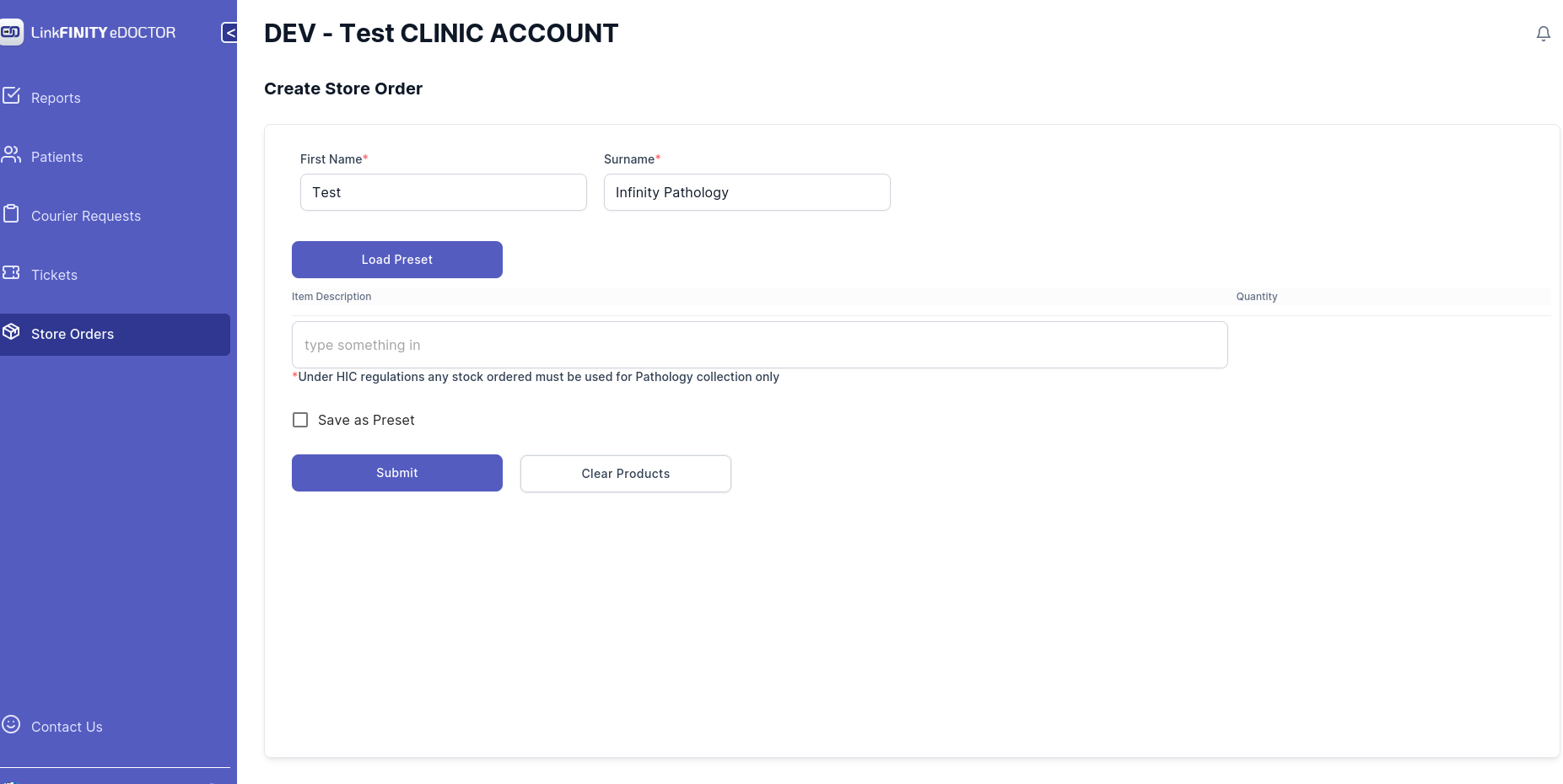
5. Start Typing in the search box
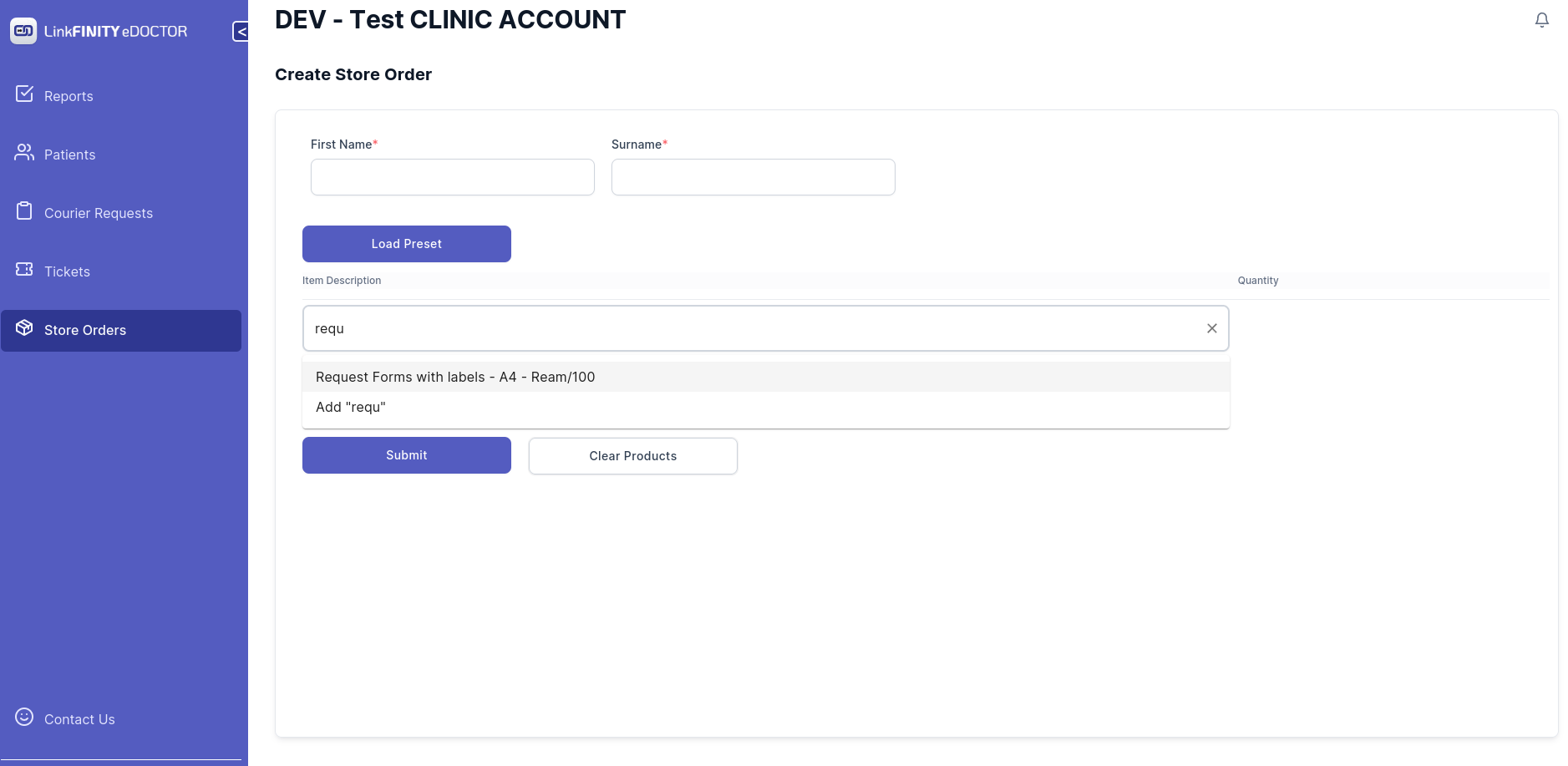
6. use mouse to left click on the product or hit enter key on your keyboard to select the product
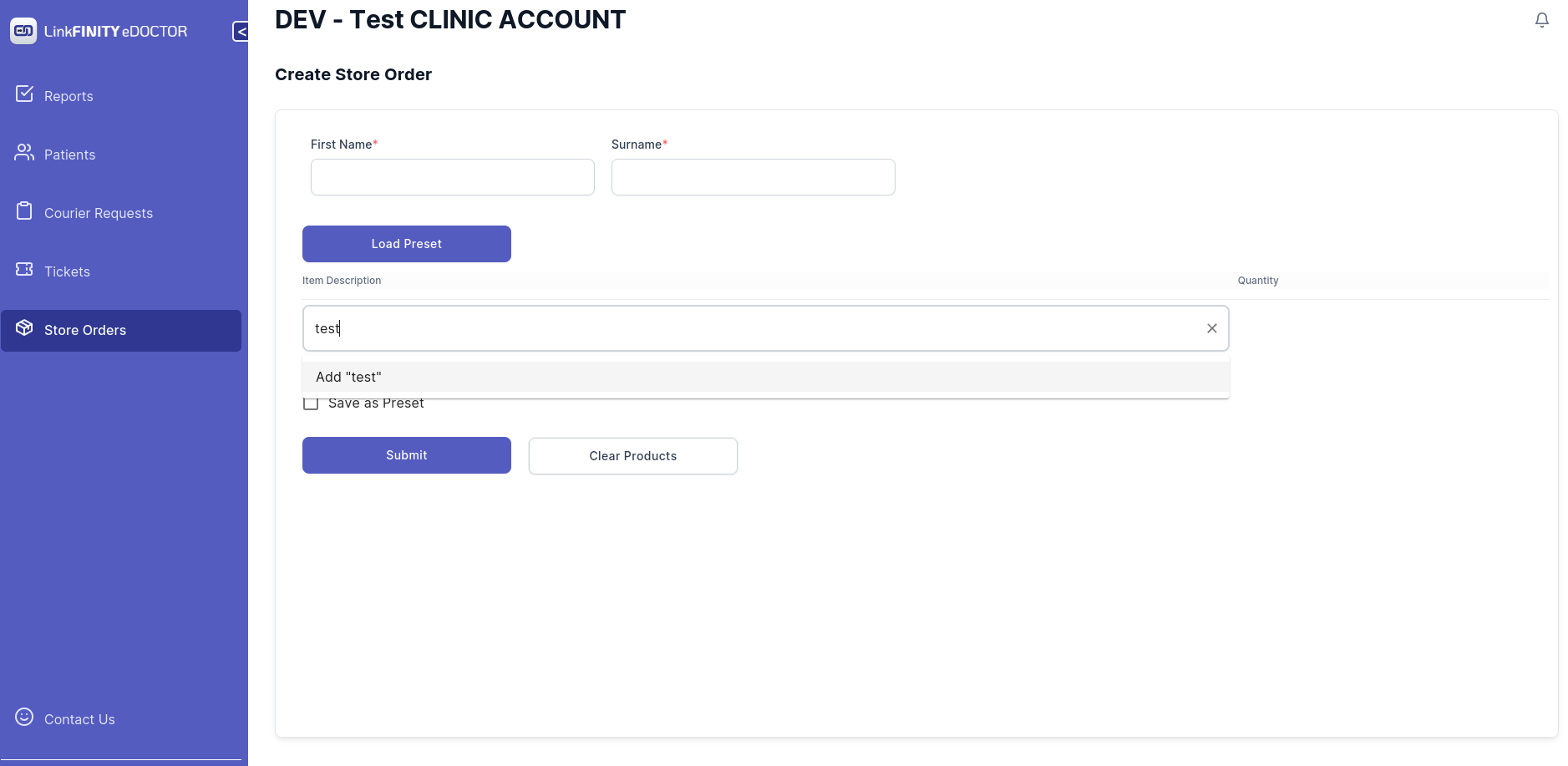
7. If the product happens to be not in the list. an option would pop up saying `Add ProductName`
use mouse to click it or just hit enter key on your keyboard to select
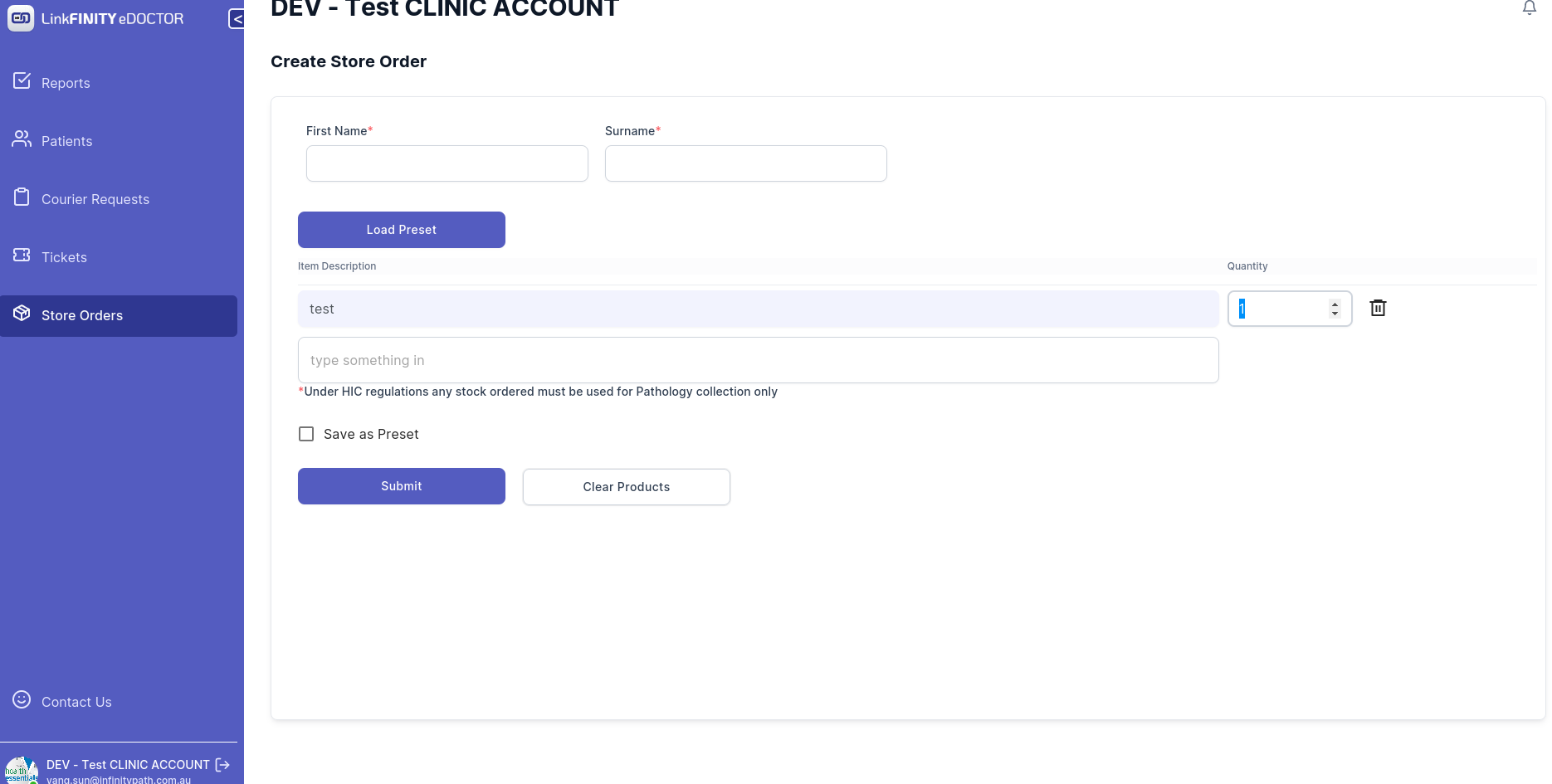
8. repeat the process and once you get all the products you need.
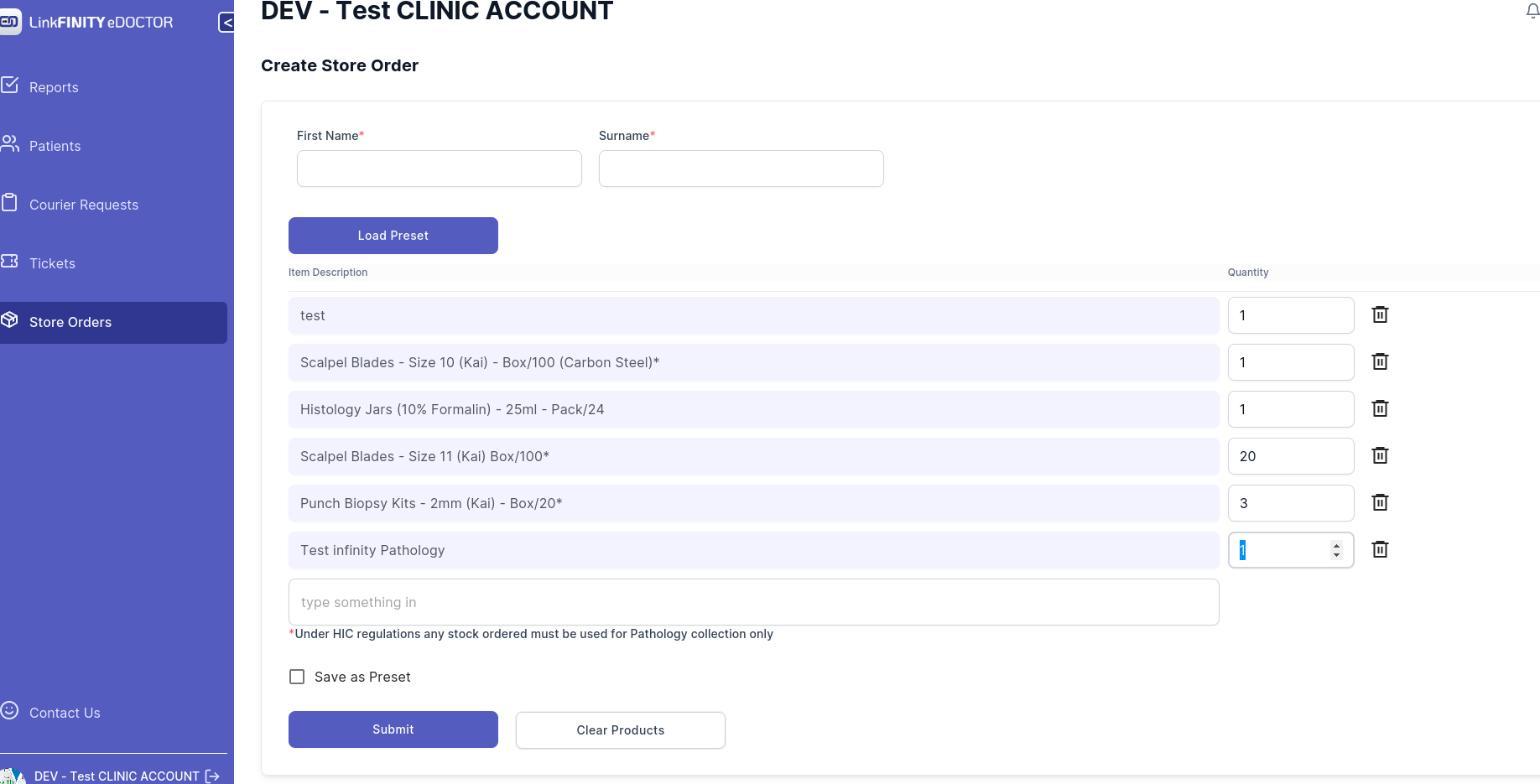
9. you can also save this order as a preset so it saves the hassle of typing everything in each time you want to make a store order.
10. Click on submit button
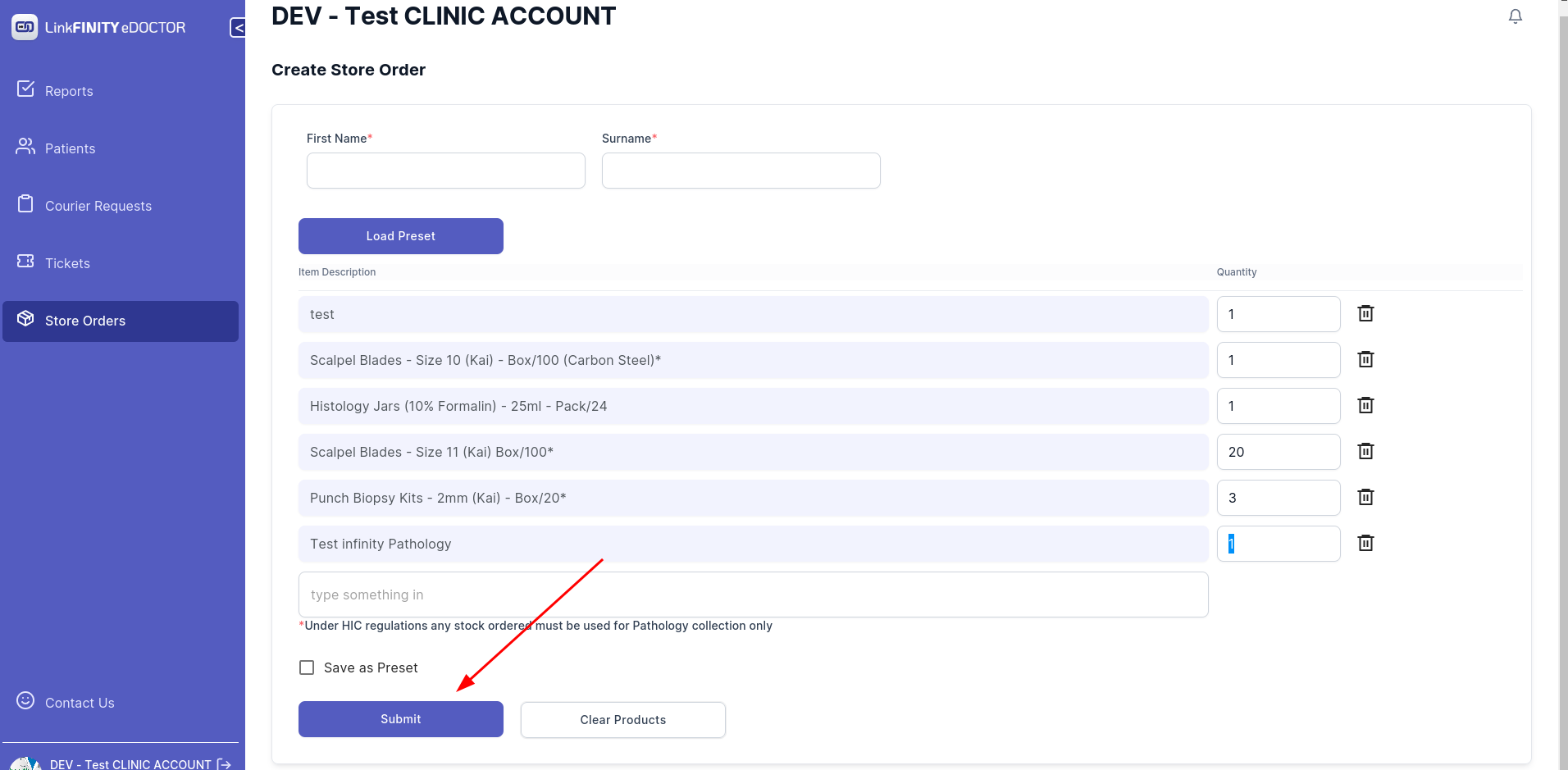
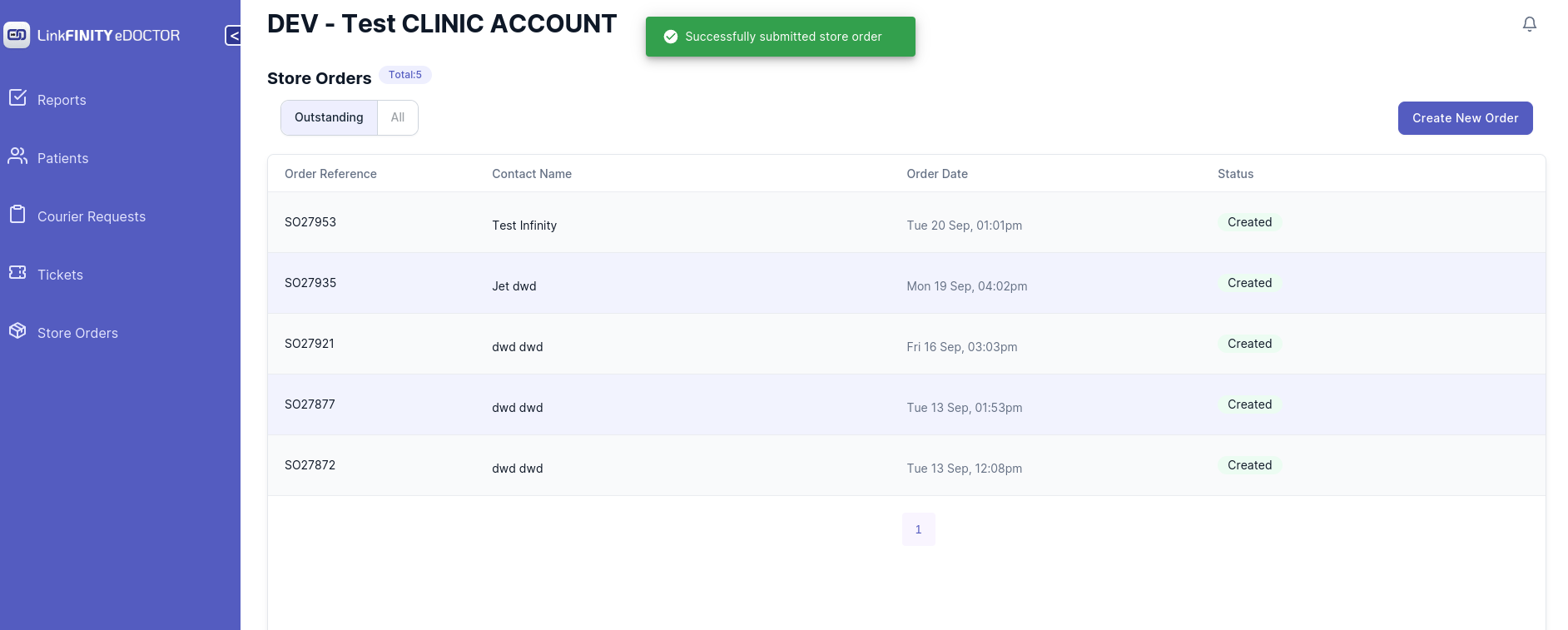
11. If you get below message that means the order has been submitted successfully.
if you encountered a problem. please send a email to eDoctor@linkfinity.com.au for support.
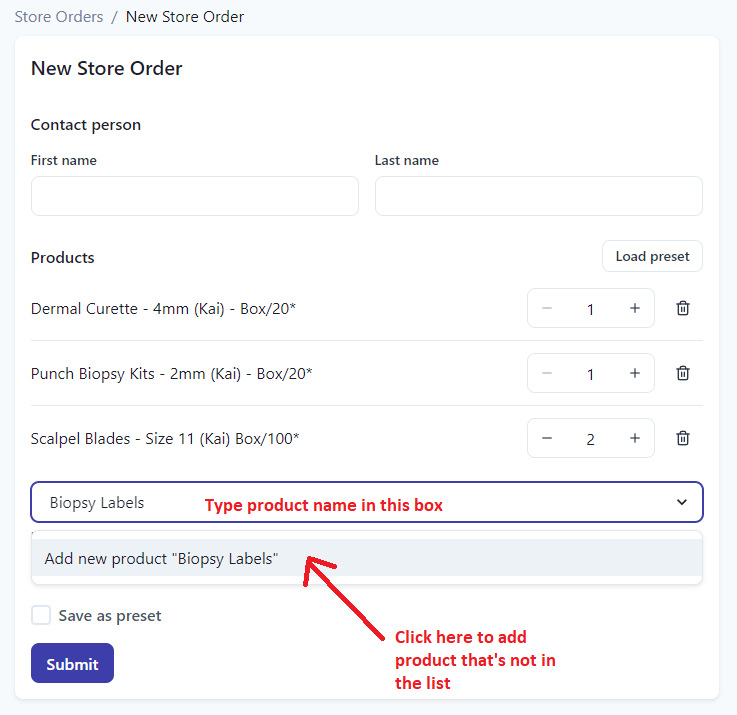
Order an item that is not listed in the products list
If you are unable to locate the item you need on the list, simply enter a name or description of the item in the search box and click "Add new product." Then, select the quantity you wish to order.
If you encounter any problems, please don't hesitate to contact us.