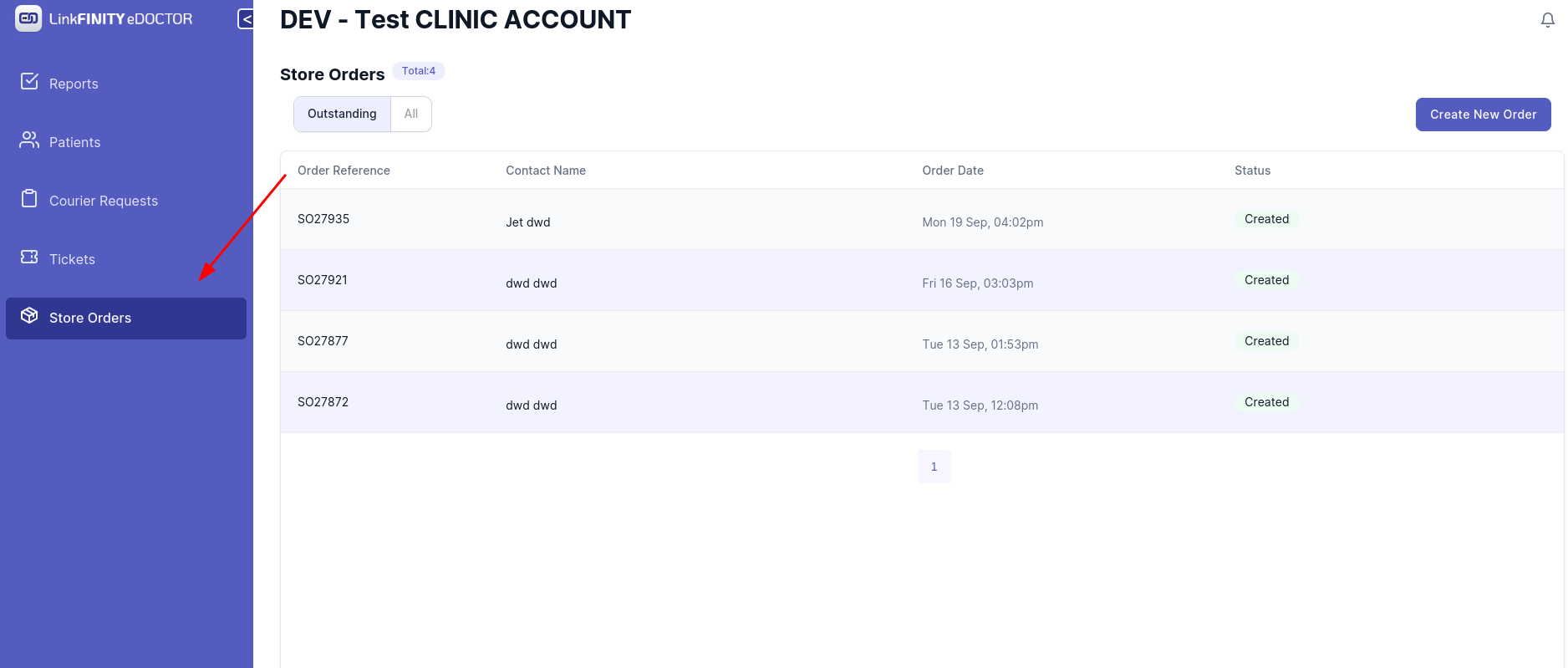
2. Click on `Create New Order` Button
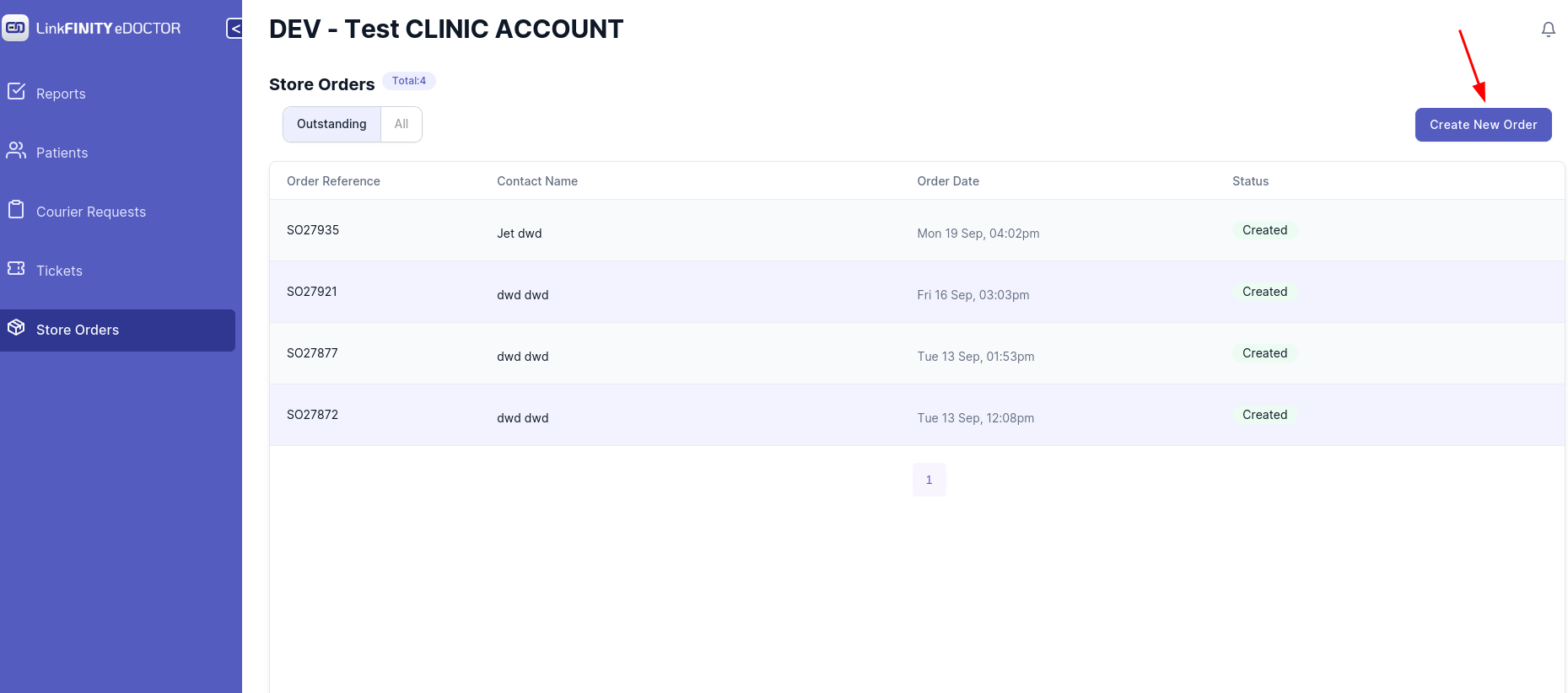
3. This Page should be showing
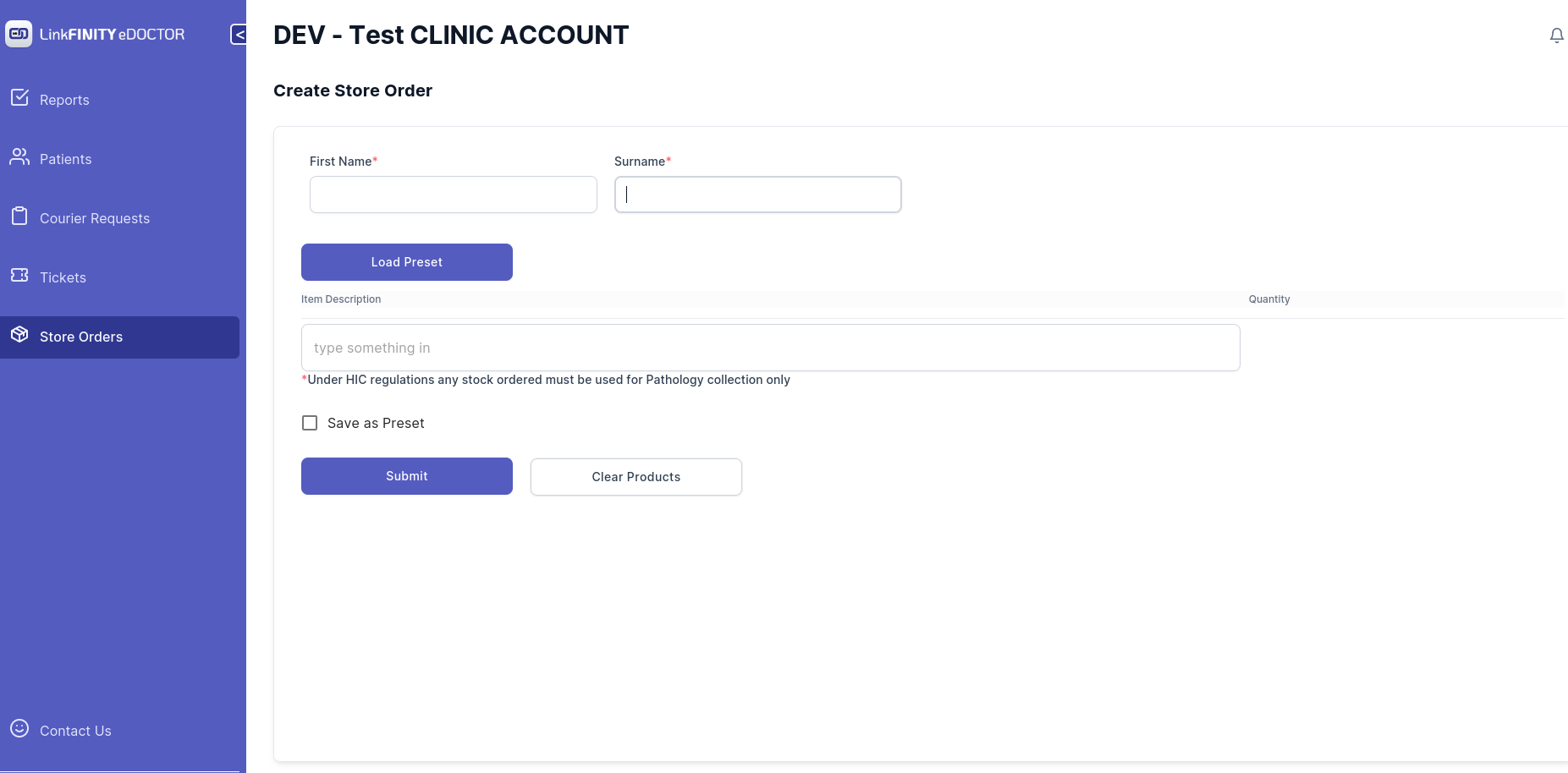
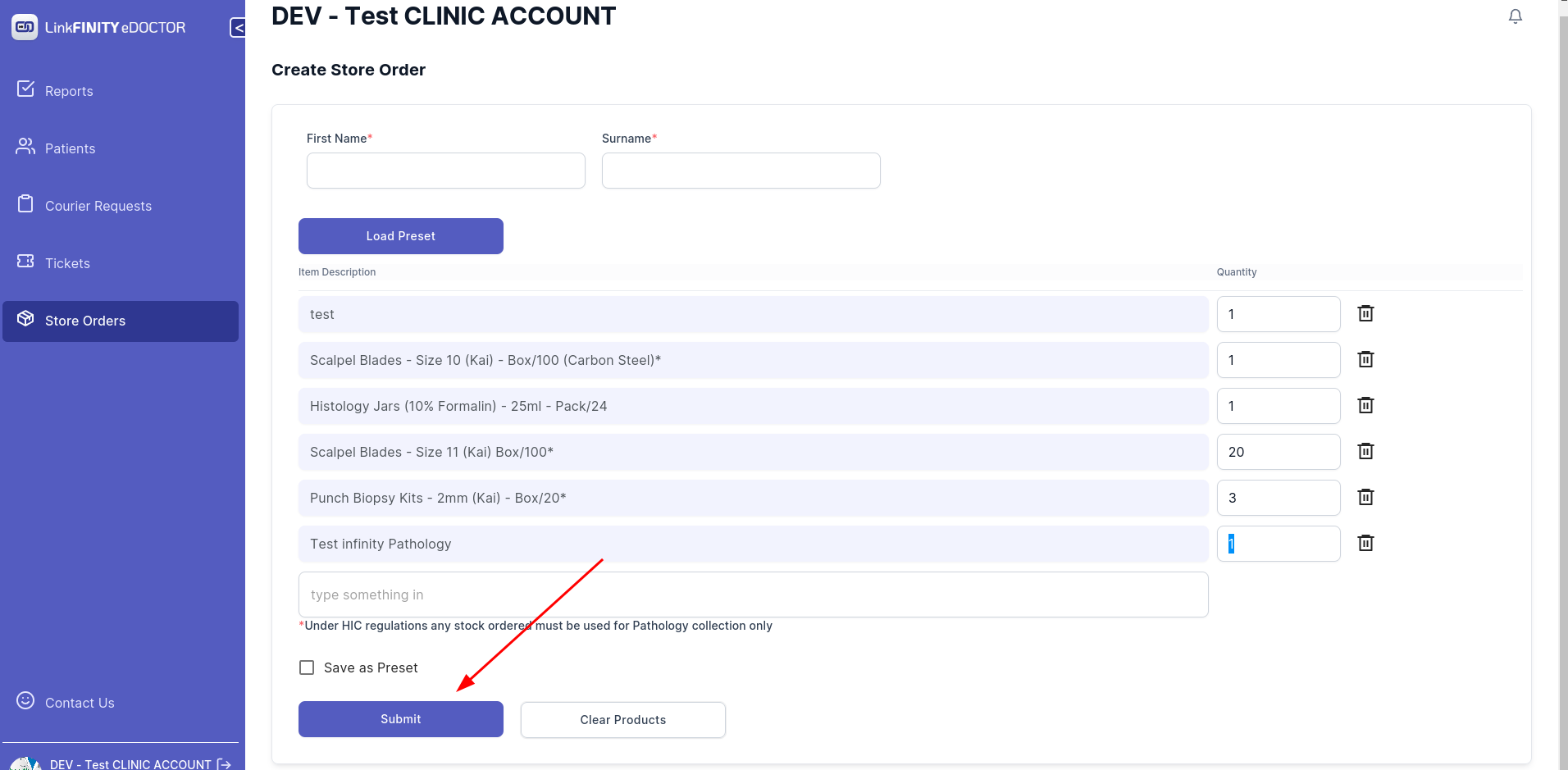
4. Type in your First Name and Surname in corresponding text box
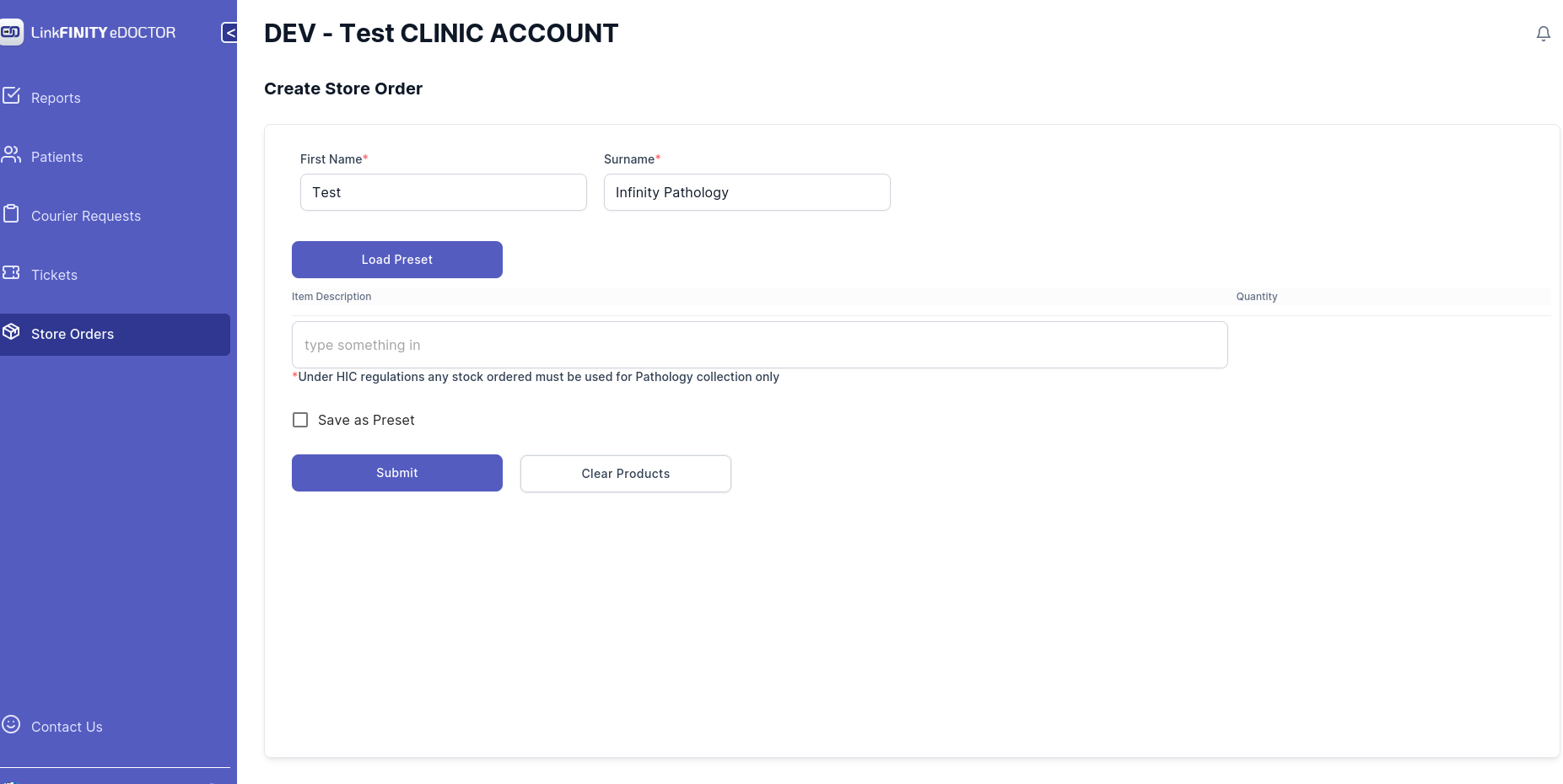
5. Start Typing in the search box
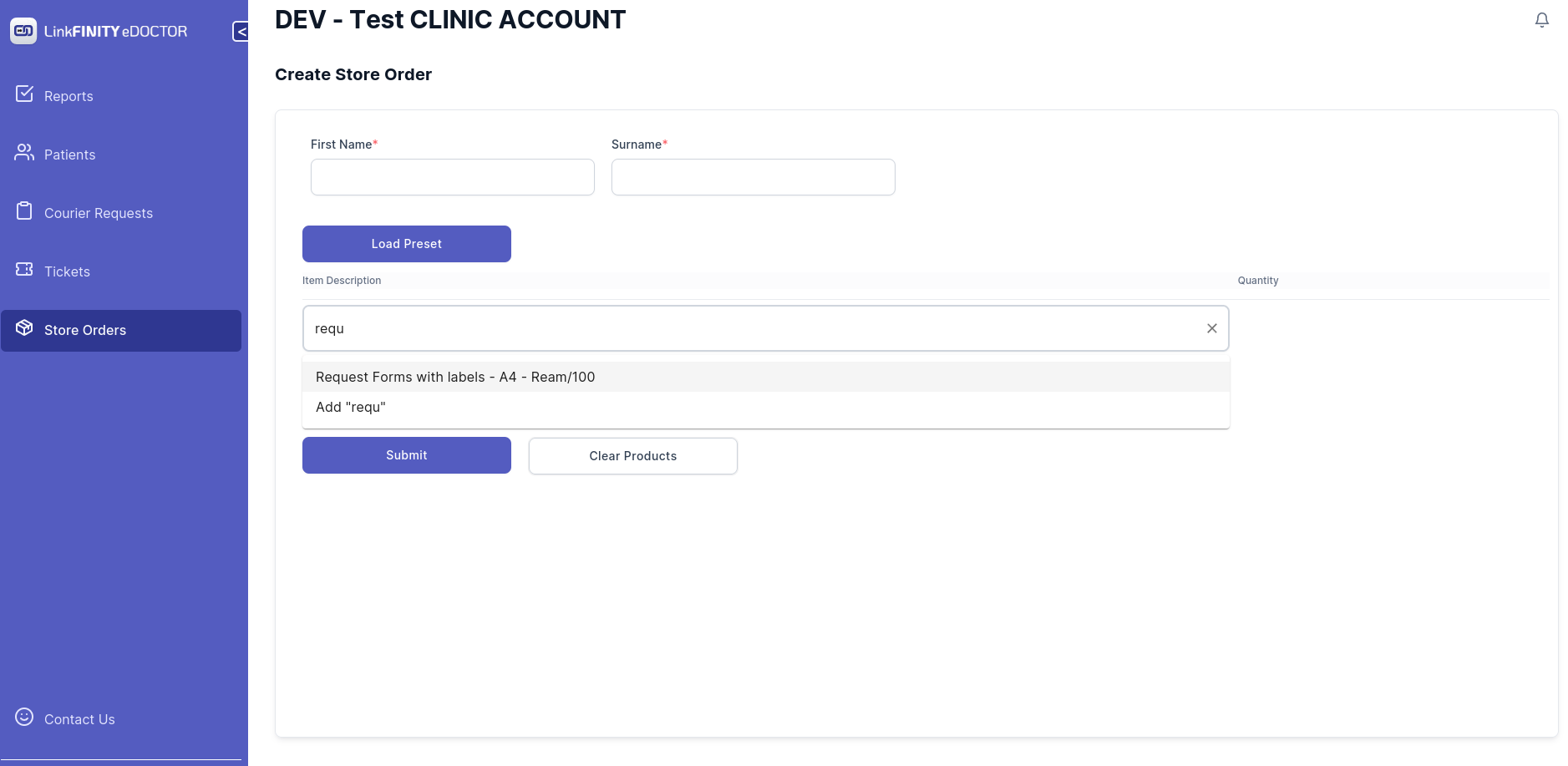
6. use mouse to left click on the product or hit enter key on your keyboard to select the product
7. If the product happens to be not in the list. an option would pop up saying `Add ProductName`
use mouse to click it or just hit enter key on your keyboard to select
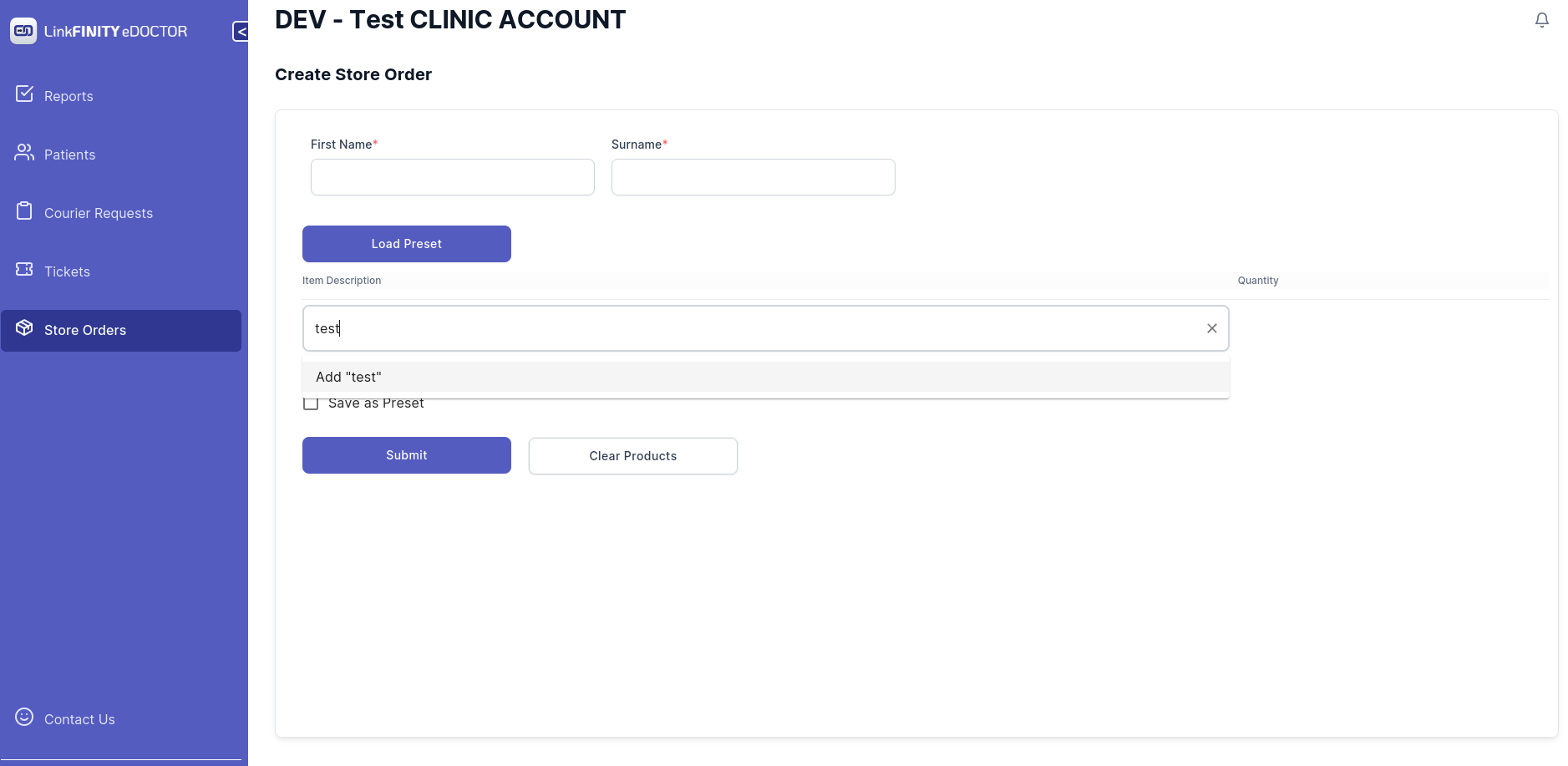
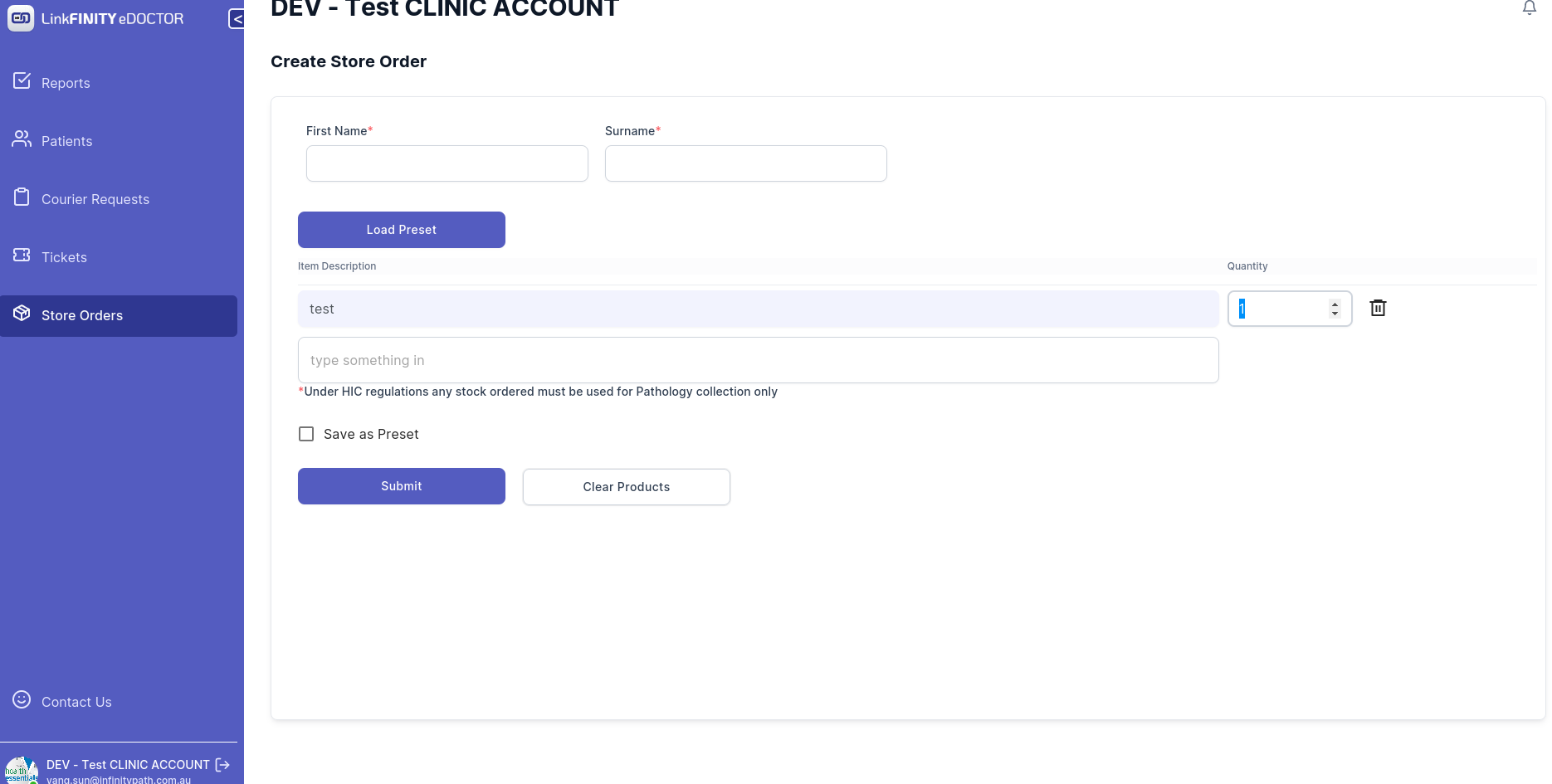
8. repeat the process and once you get all the products you need.
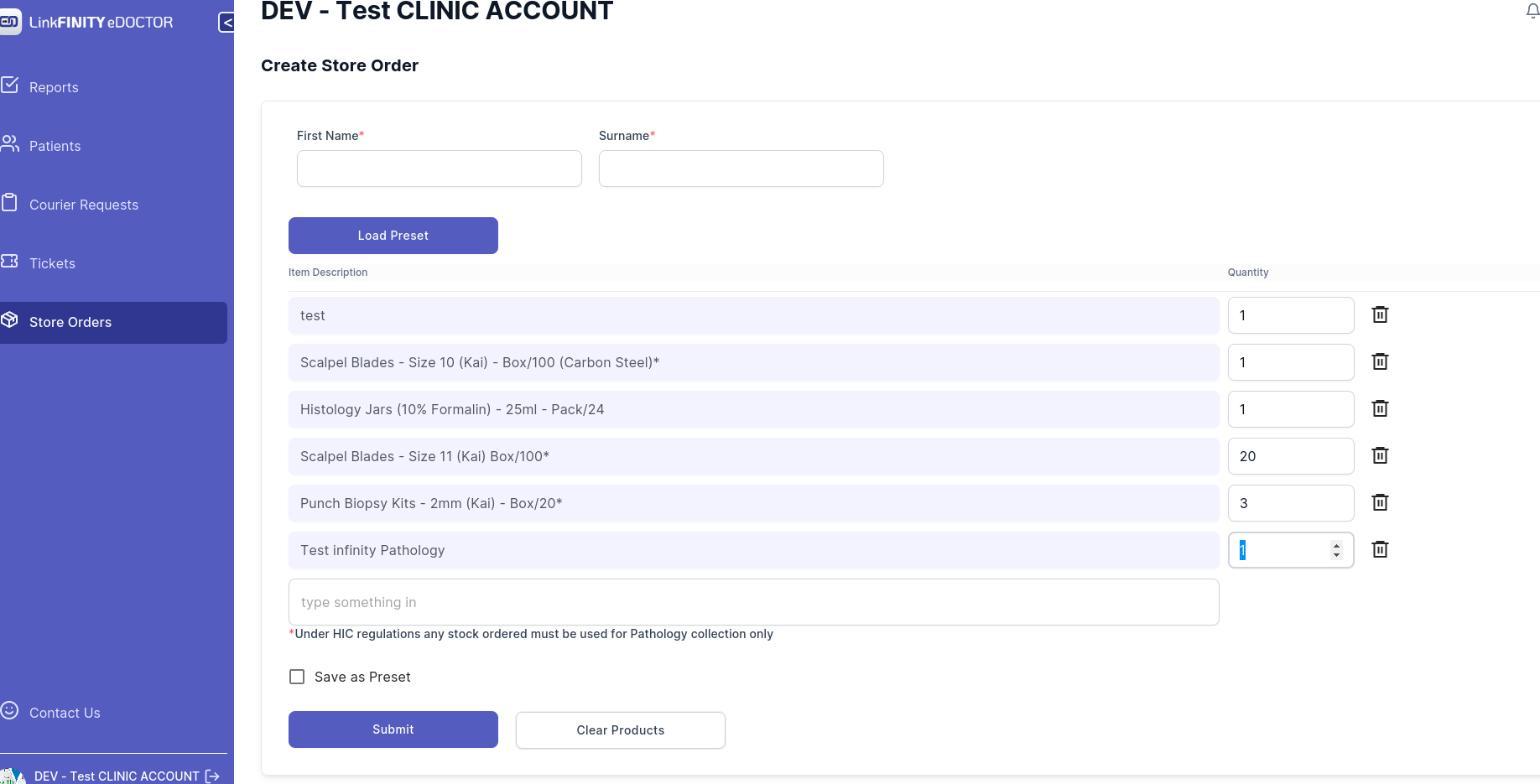
9. you can also save this order as a preset so it saves the hassle of typing everything in each time you want to make a store order.
10. Click on submit button
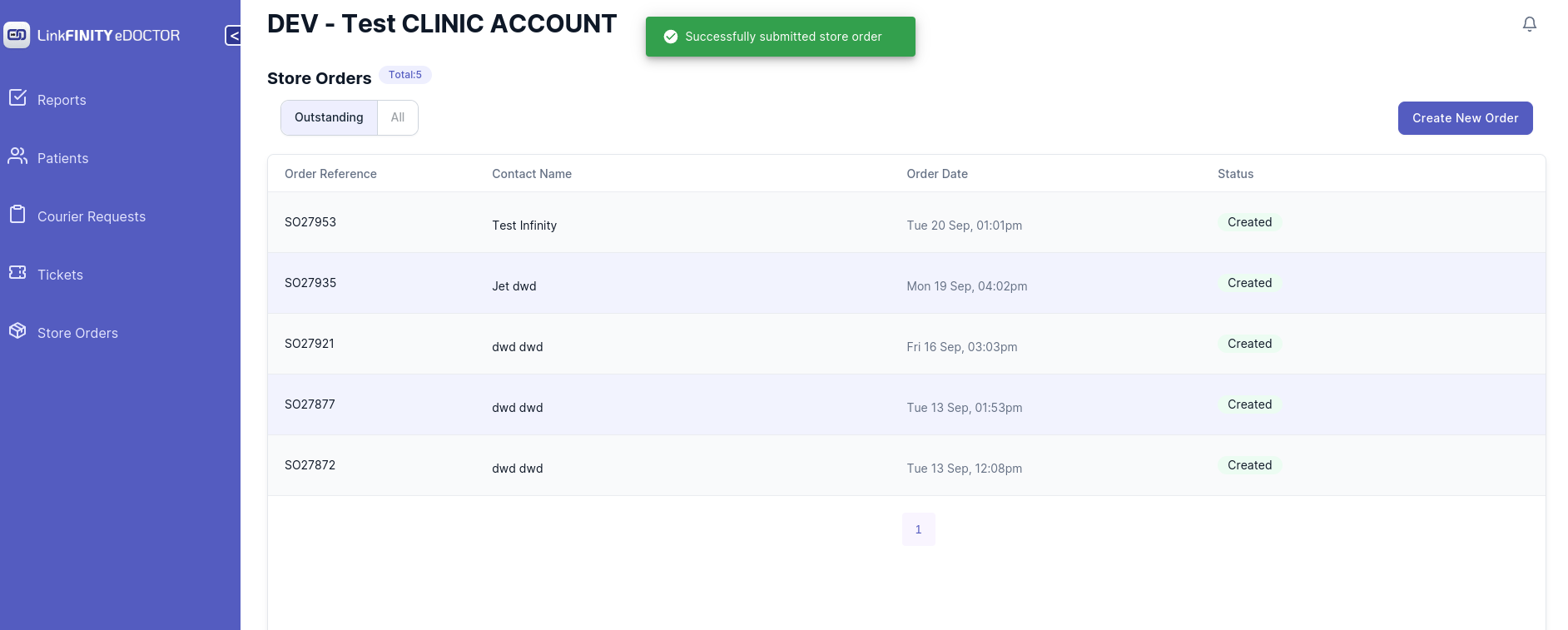
11. If you get below message that means the order has been submitted successfully.
if you encountered a problem. please send a email to eDoctor@linkfinity.com.au for support.
 ](https://apps.apple.com/au/app/edoctor/id1641842828)
## [Android user](https://play.google.com/store/apps/details?id=com.edoctormobileapp)
[
](https://apps.apple.com/au/app/edoctor/id1641842828)
## [Android user](https://play.google.com/store/apps/details?id=com.edoctormobileapp)
[ ](https://play.google.com/store/apps/details?id=com.edoctormobileapp)
## [Web](https://edoctor.linkfinity.com.au)
Please Click on this link to navigate to eDoctor
[https://edoctor.linkfinity.com.au](https://edoctor.linkfinity.com.au)
# How to reset the password
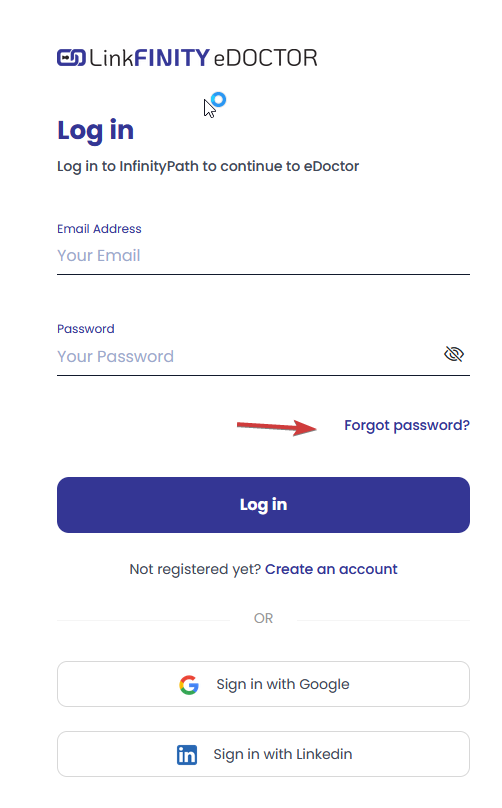
1. Open eDoctor by this link as below [https://edoctor.linkfinity.com.au/](https://edoctor.linkfinity.com.au/kb/attachments/1)
2. Hit "Forgot Password? "
[](https://edoctor.linkfinity.com.au/kb/uploads/images/gallery/2023-02/image-1675820900113.png)
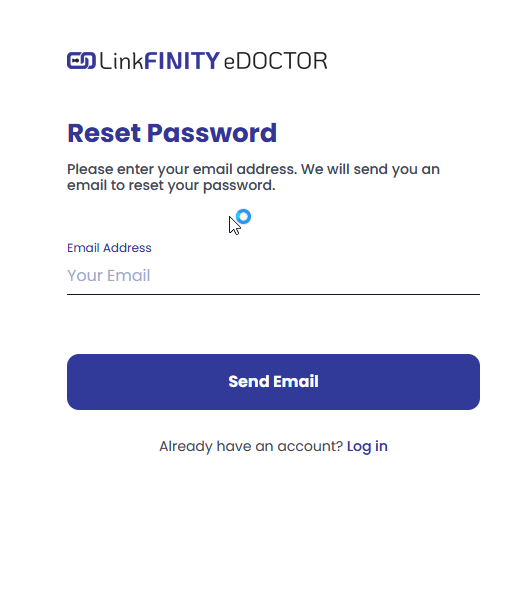
3. Then fill email in and hit "Send Email"
[](https://edoctor.linkfinity.com.au/kb/uploads/images/gallery/2023-02/image-1675820940841.png)
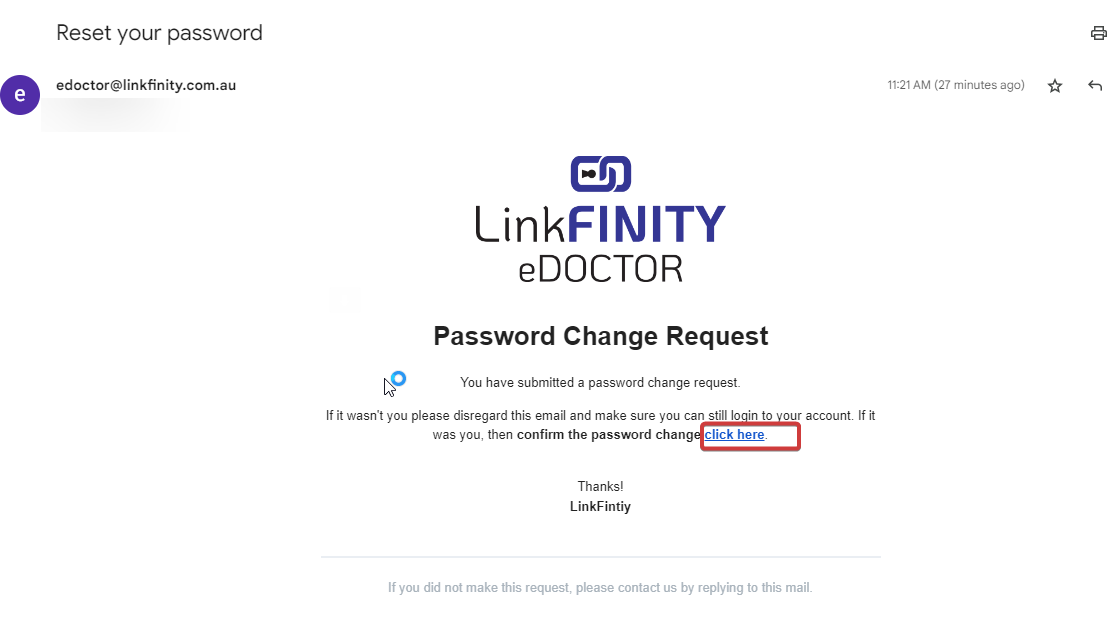
4. Then click on "Click Here" in order to enter the NEW password
[](https://edoctor.linkfinity.com.au/kb/uploads/images/gallery/2023-02/image-1675821007423.png)
# Requesting Histopathology Reports via eDoctor
This guide will help you efficiently request histopathology reports using the eDoctor platform. This feature is especially useful for patients transitioning between medical centers, ensuring their medical history is readily accessible. Most requests are processed within 1-3 minutes.
1. **Access eDoctor:**
- Visit: [https://edoctor.linkfinity.com.au/](https://edoctor.linkfinity.com.au/).
2. **Create a New Request:**
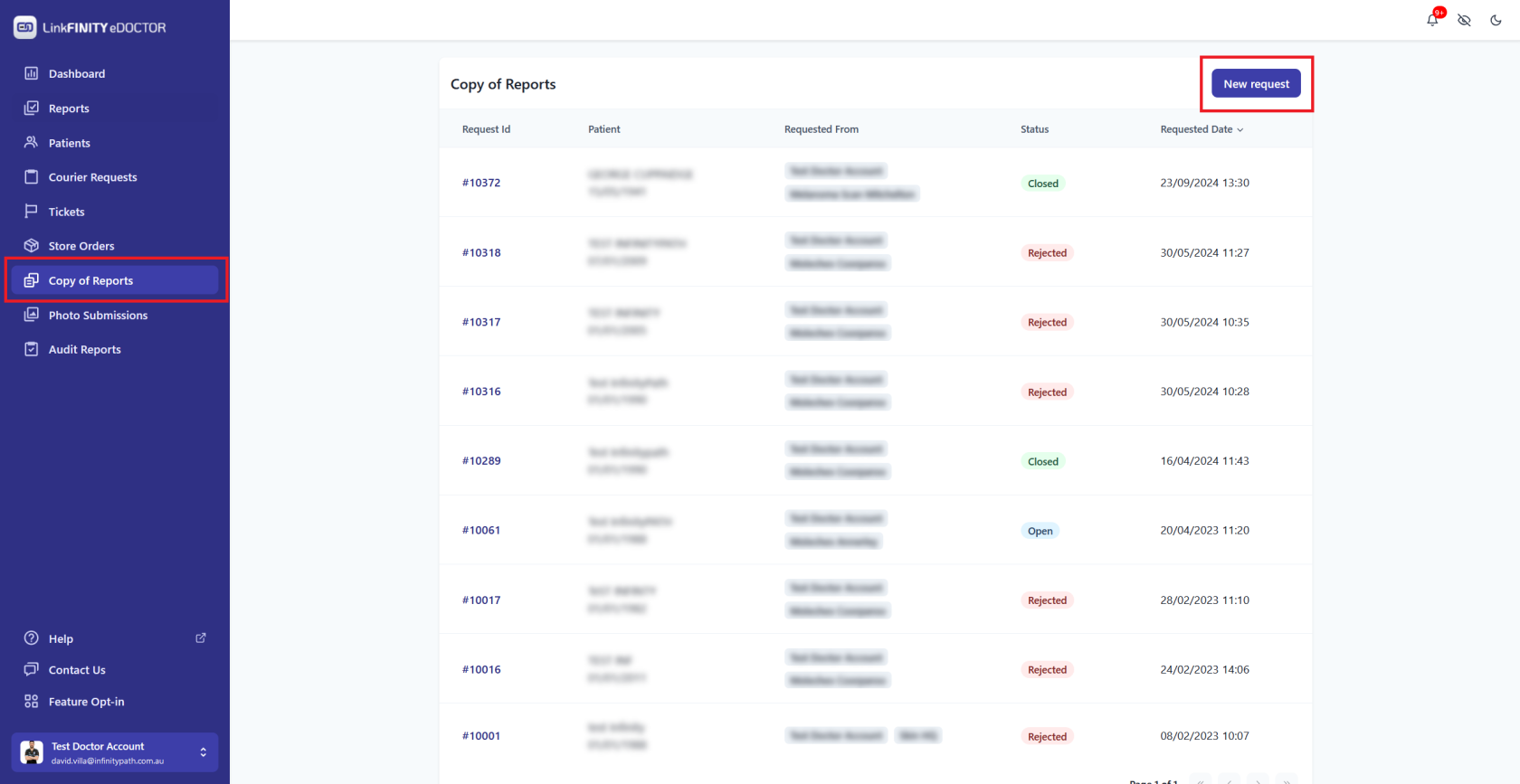
- Navigate to **Copy of Reports** in the sidebar.
- Click on **New request**.
[](https://edoctor.linkfinity.com.au/kb/uploads/images/gallery/2024-11/copy-reports-1.PNG)
3. **Fill in the Required Information:**
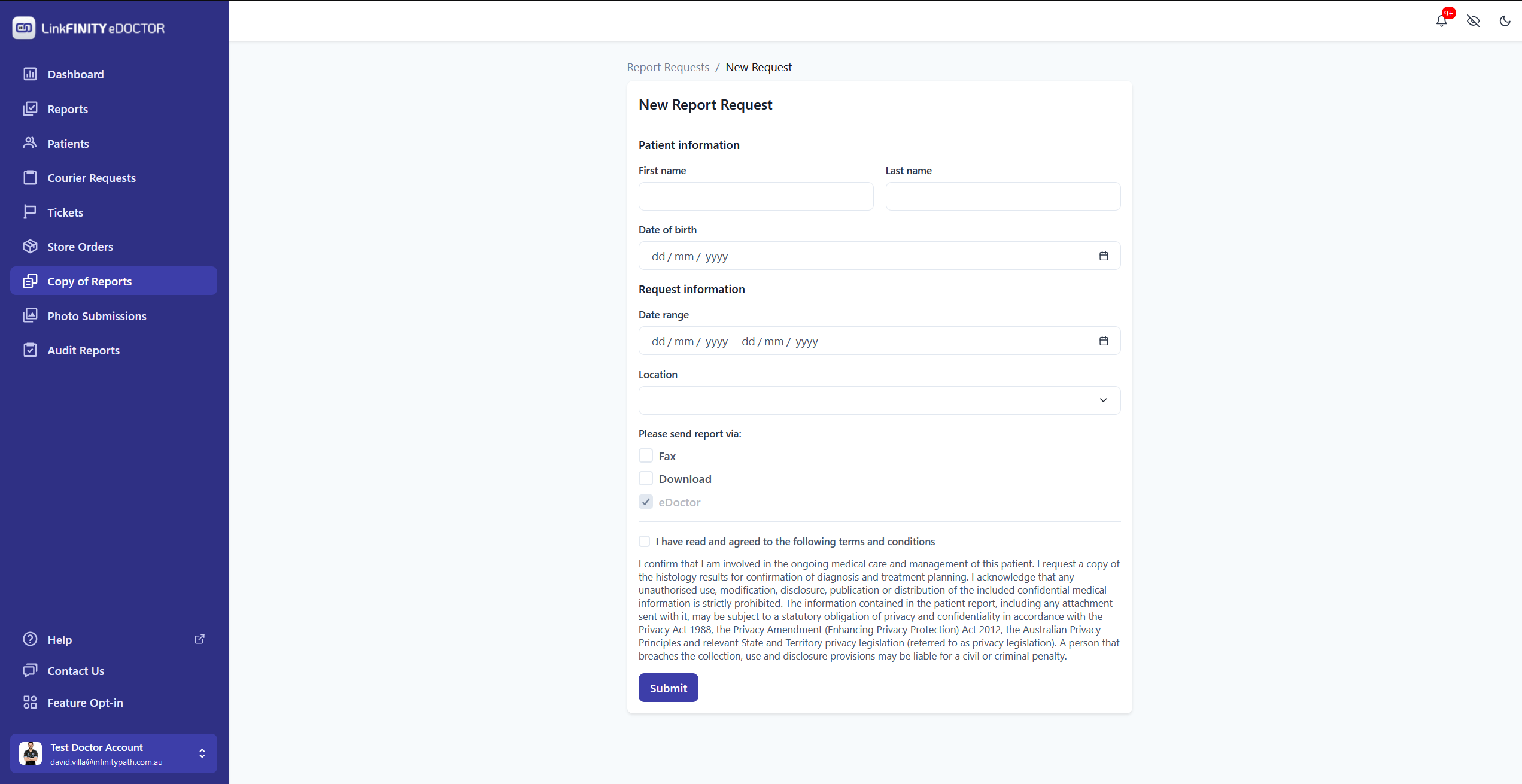
- Enter patient details: First Name and Last Name.
- Provide the Request Information, including Date of Birth (DOB) and any other necessary details.
[](https://edoctor.linkfinity.com.au/kb/uploads/images/gallery/2024-11/copy-reports-2.PNG)
4. **Submit Your Request:**
- Read and agree to the terms and conditions.
- Click **Submit** to finalise the request.
*Please ensure all information is accurate to expedite the process.*
# Upload Clinical Photos
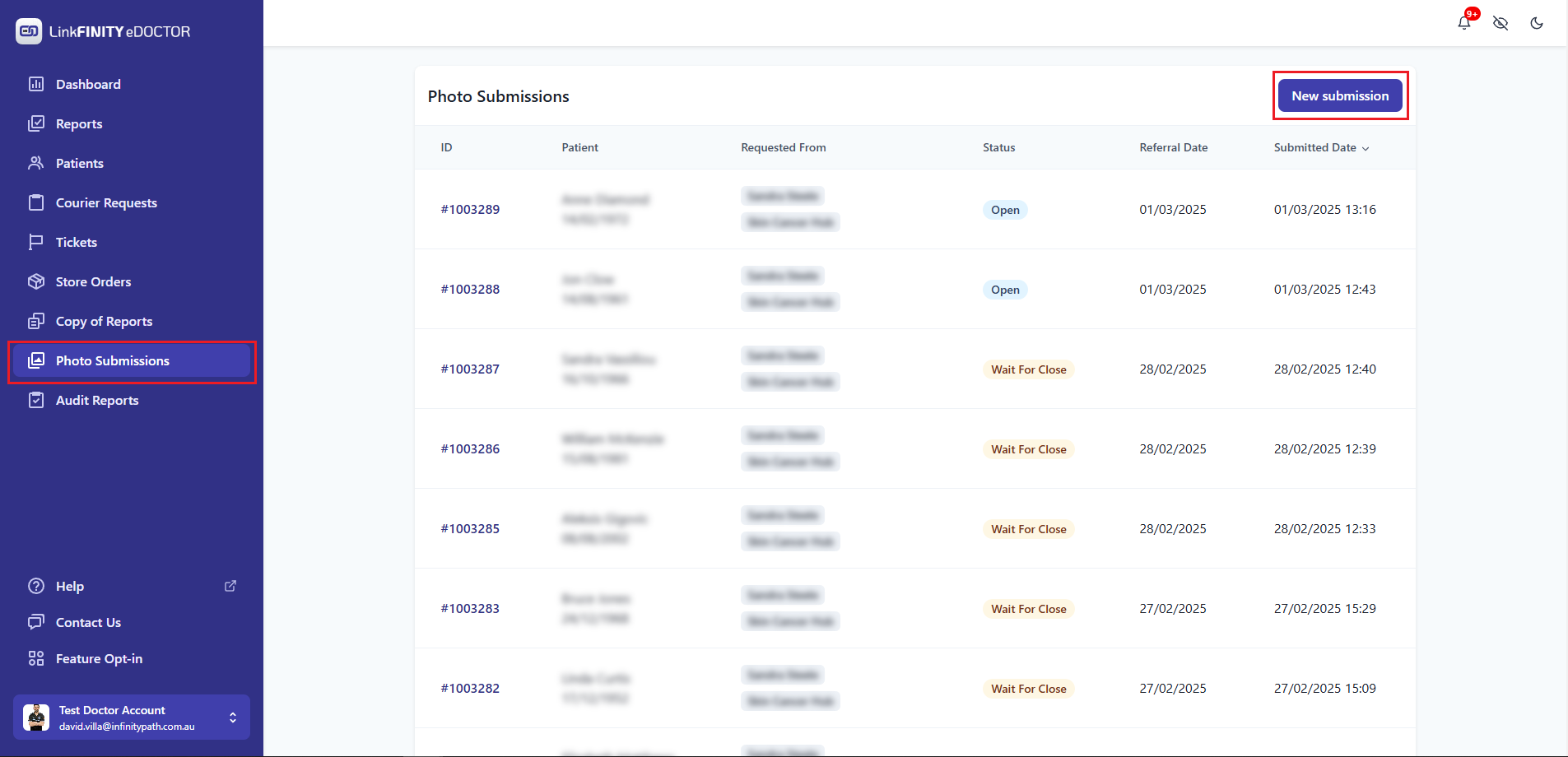
1. **Go to Photo Submissions:** In the left sidebar menu, click on "Photo Submissions".
2. **Start a New Submission:** Click the "New submission" button, found in the upper-right area of the Photo Submissions page.
[](https://edoctor.linkfinity.com.au/kb/uploads/images/gallery/2025-03/photo-submission-1.png)
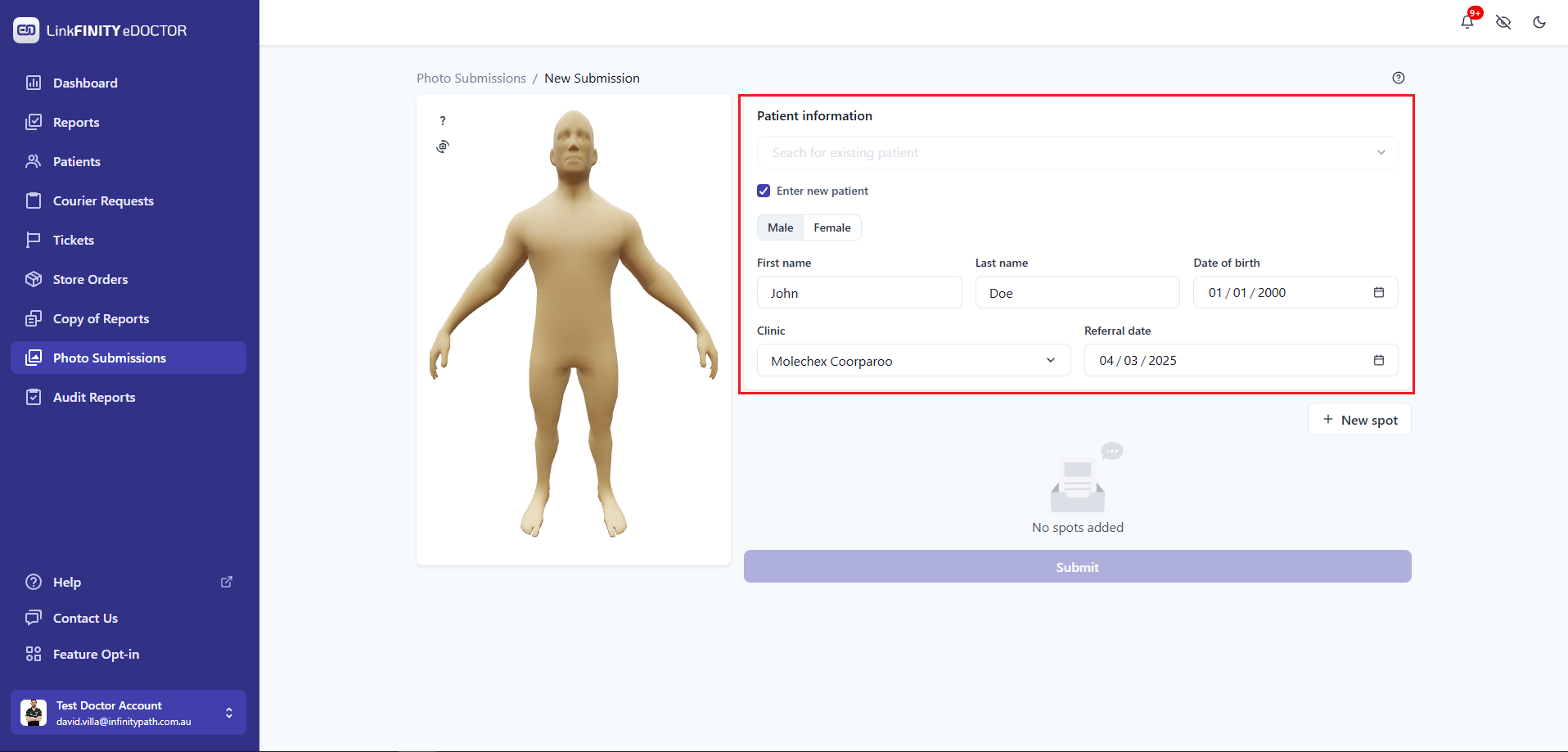
3. **Enter Patient Information:**
* **Search for Existing Patient:** Use the "Search for existing patient" dropdown to find the patient.
* **OR Enter New Patient:** If the patient is new, choose the "Enter new patient" radio button (Male/Female).
* Fill in the "First name", "Last name", and "Date of birth" fields.
* Select the "Clinic" from the dropdown menu.
* Enter the "Referral date".
[](https://edoctor.linkfinity.com.au/kb/uploads/images/gallery/2025-03/photo-submission-2.png)
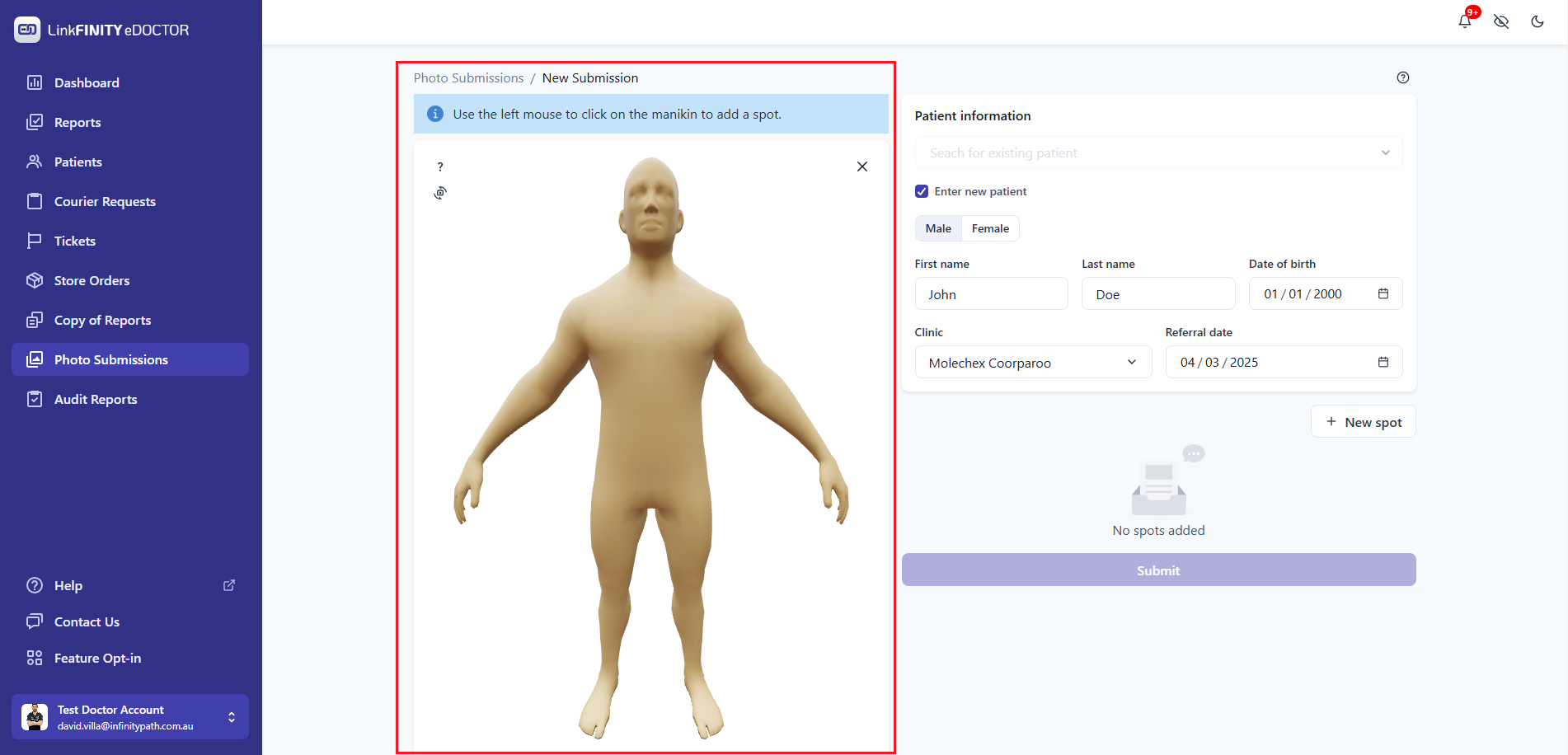
4. **Add Spots:**
* Click the "+ New spot" button to start adding a new spot.
* **Add spots:** Use the left mouse button to click on the manikin (3D human model) to add a spot to the body.
[](https://edoctor.linkfinity.com.au/kb/uploads/images/gallery/2025-03/photo-submission-3.png)
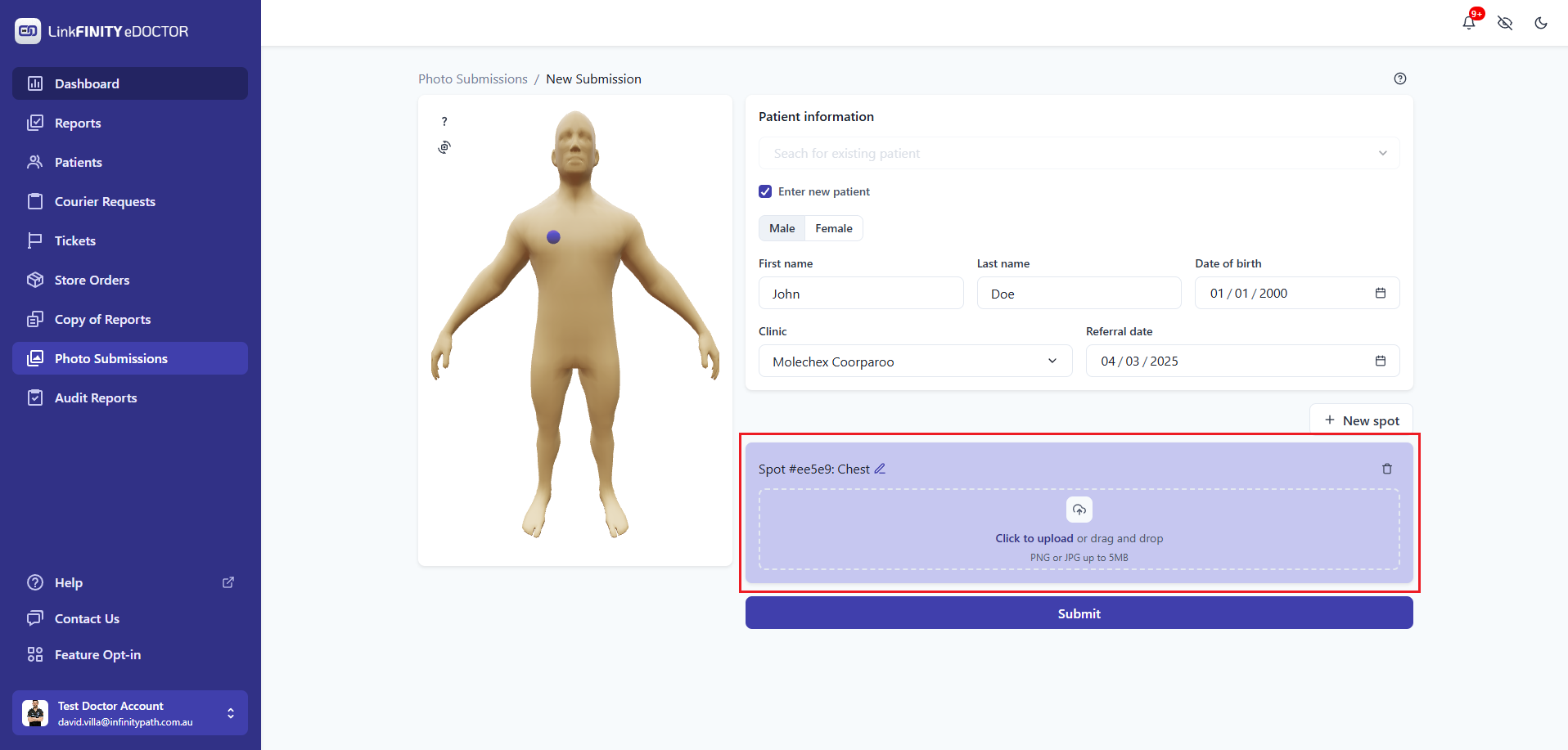
5. **Upload Photos for Each Spot:**
* For each spot added: click on spot location, and then click "Click to upload" within the spot area to browse your files and select the corresponding photo.
* Alternatively, drag and drop the photo directly into the spot area.
[](https://edoctor.linkfinity.com.au/kb/uploads/images/gallery/2025-03/photo-submission-4.png)
6. **Submit the Submission:** Once you've added all spots and uploaded the relevant photos, click the "Submit" button.
# How to submit a report inquiry
](https://play.google.com/store/apps/details?id=com.edoctormobileapp)
## [Web](https://edoctor.linkfinity.com.au)
Please Click on this link to navigate to eDoctor
[https://edoctor.linkfinity.com.au](https://edoctor.linkfinity.com.au)
# How to reset the password
1. Open eDoctor by this link as below [https://edoctor.linkfinity.com.au/](https://edoctor.linkfinity.com.au/kb/attachments/1)
2. Hit "Forgot Password? "
[](https://edoctor.linkfinity.com.au/kb/uploads/images/gallery/2023-02/image-1675820900113.png)
3. Then fill email in and hit "Send Email"
[](https://edoctor.linkfinity.com.au/kb/uploads/images/gallery/2023-02/image-1675820940841.png)
4. Then click on "Click Here" in order to enter the NEW password
[](https://edoctor.linkfinity.com.au/kb/uploads/images/gallery/2023-02/image-1675821007423.png)
# Requesting Histopathology Reports via eDoctor
This guide will help you efficiently request histopathology reports using the eDoctor platform. This feature is especially useful for patients transitioning between medical centers, ensuring their medical history is readily accessible. Most requests are processed within 1-3 minutes.
1. **Access eDoctor:**
- Visit: [https://edoctor.linkfinity.com.au/](https://edoctor.linkfinity.com.au/).
2. **Create a New Request:**
- Navigate to **Copy of Reports** in the sidebar.
- Click on **New request**.
[](https://edoctor.linkfinity.com.au/kb/uploads/images/gallery/2024-11/copy-reports-1.PNG)
3. **Fill in the Required Information:**
- Enter patient details: First Name and Last Name.
- Provide the Request Information, including Date of Birth (DOB) and any other necessary details.
[](https://edoctor.linkfinity.com.au/kb/uploads/images/gallery/2024-11/copy-reports-2.PNG)
4. **Submit Your Request:**
- Read and agree to the terms and conditions.
- Click **Submit** to finalise the request.
*Please ensure all information is accurate to expedite the process.*
# Upload Clinical Photos
1. **Go to Photo Submissions:** In the left sidebar menu, click on "Photo Submissions".
2. **Start a New Submission:** Click the "New submission" button, found in the upper-right area of the Photo Submissions page.
[](https://edoctor.linkfinity.com.au/kb/uploads/images/gallery/2025-03/photo-submission-1.png)
3. **Enter Patient Information:**
* **Search for Existing Patient:** Use the "Search for existing patient" dropdown to find the patient.
* **OR Enter New Patient:** If the patient is new, choose the "Enter new patient" radio button (Male/Female).
* Fill in the "First name", "Last name", and "Date of birth" fields.
* Select the "Clinic" from the dropdown menu.
* Enter the "Referral date".
[](https://edoctor.linkfinity.com.au/kb/uploads/images/gallery/2025-03/photo-submission-2.png)
4. **Add Spots:**
* Click the "+ New spot" button to start adding a new spot.
* **Add spots:** Use the left mouse button to click on the manikin (3D human model) to add a spot to the body.
[](https://edoctor.linkfinity.com.au/kb/uploads/images/gallery/2025-03/photo-submission-3.png)
5. **Upload Photos for Each Spot:**
* For each spot added: click on spot location, and then click "Click to upload" within the spot area to browse your files and select the corresponding photo.
* Alternatively, drag and drop the photo directly into the spot area.
[](https://edoctor.linkfinity.com.au/kb/uploads/images/gallery/2025-03/photo-submission-4.png)
6. **Submit the Submission:** Once you've added all spots and uploaded the relevant photos, click the "Submit" button.
# How to submit a report inquiry
1. Navigate to the Reports tab
[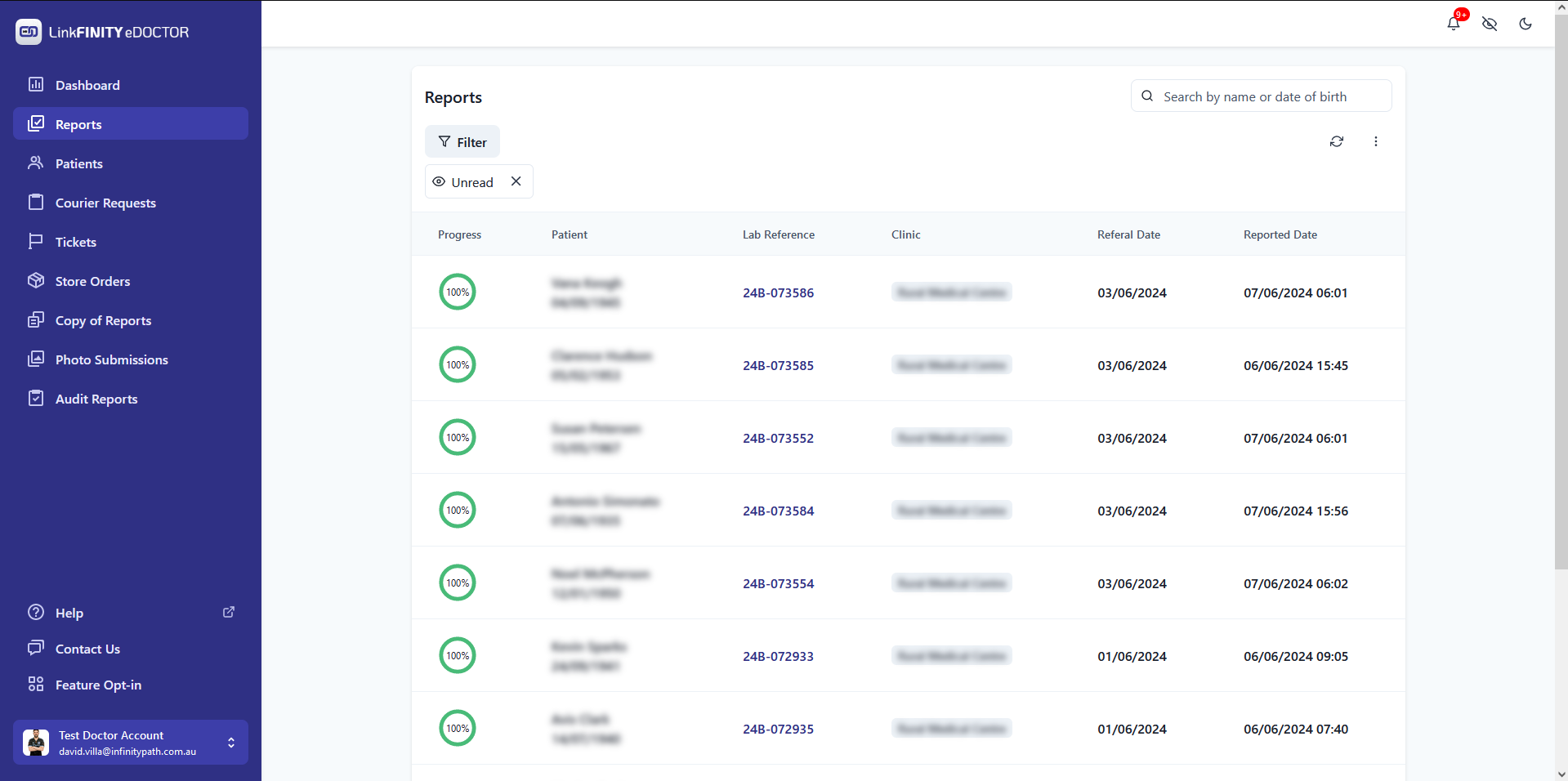](https://edoctor.linkfinity.com.au/kb/uploads/images/gallery/2024-06/1.PNG)2. Click on the report that you would like to create a ticket
3. Click on Submit Inquiry
[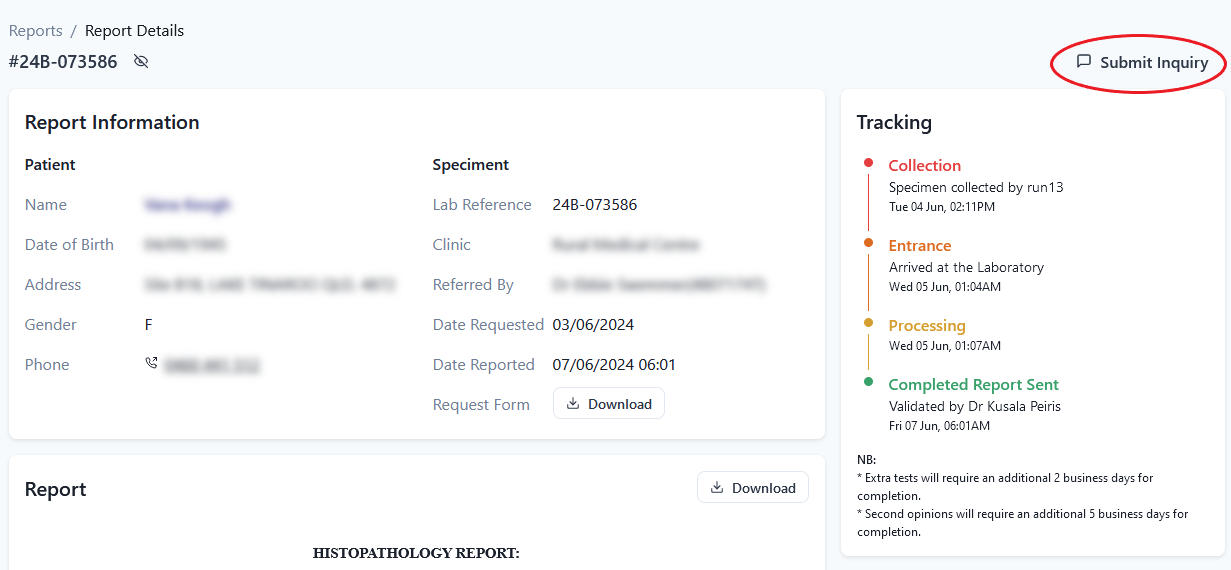](https://edoctor.linkfinity.com.au/kb/uploads/images/gallery/2024-06/2.png)4. Choose a request type and add a descriptive description about the ticket.
[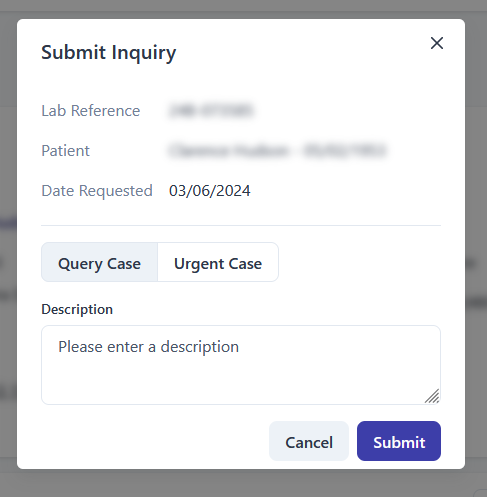](https://edoctor.linkfinity.com.au/kb/uploads/images/gallery/2024-06/gRX3.PNG)5. Click Submit
Your can view and track your submitted in the Tickets tab
[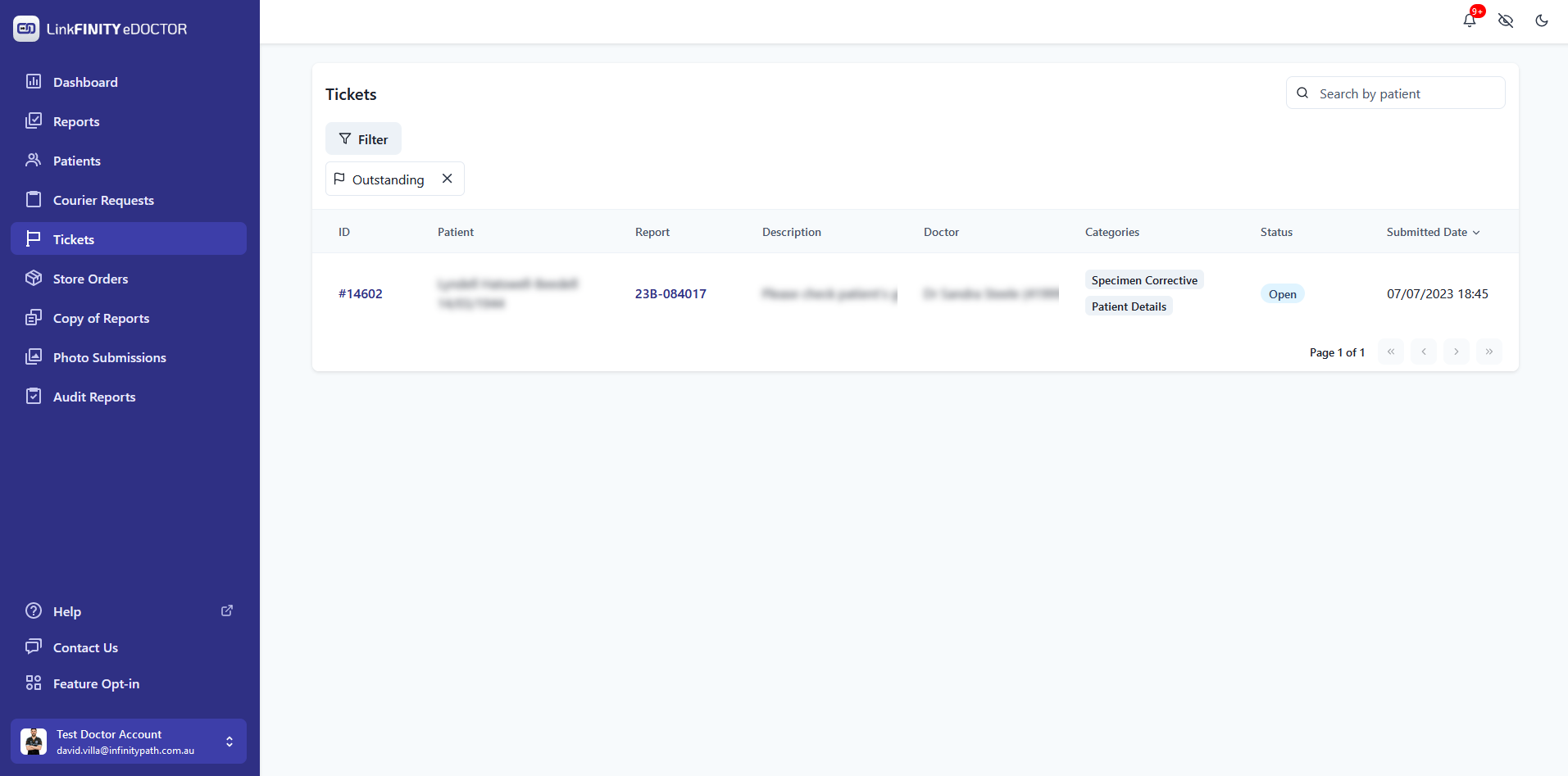](https://edoctor.linkfinity.com.au/kb/uploads/images/gallery/2024-06/4.PNG)